> For the complete documentation index, see [llms.txt](https://support.powerio.com/hub/llms.txt). Markdown versions of documentation pages are available by appending `.md` to page URLs; this page is available as [Markdown](https://support.powerio.com/hub/orbit/en/getting-started/zugang-beantragen.md).

# Request access and get started

Register for powerIO Orbit, get on the allowlist, and after approval start with your own organization.

Registration begins at <code class="expression">space.vars.orbit\_url</code>. powerIO reviews and approves new accounts. Orbit runs in the browser; no installation is required.

<a href="https://orbit.powerio.com" class="button primary" data-icon="rocket-launch">Request access</a>

## What you gain with powerIO Orbit

<table data-view="cards"><thead><tr><th></th><th></th><th></th></tr></thead><tbody><tr><td><h4><i class="fa-box-archive" style="color:$primary;">:box-archive:</i></h4></td><td><h4>Every software version in its place</h4></td><td>The project for each controller is stored as a software archive directly with its plant. Every version is retained and can be downloaded.</td></tr><tr><td><h4><i class="fa-bolt" style="color:$primary;">:bolt:</i></h4></td><td><h4>Analysis without manual work</h4></td><td>Orbit automatically reads values such as the CODESYS version from CODESYS and SBC archives. You can see the status without opening the project.</td></tr><tr><td><h4><i class="fa-sitemap" style="color:$primary;">:sitemap:</i></h4></td><td><h4>Buildings instead of folder structure</h4></td><td>Projects map buildings, trades, and plants as a tree. Custom attributes such as plant number or IP address make every plant easy to find.</td></tr><tr><td><h4><i class="fa-user-group" style="color:$primary;">:user-group:</i></h4></td><td><h4>Team and partners on board</h4></td><td>Roles control who may see and change what. Service partners work as external users without becoming part of your organization.</td></tr><tr><td><h4><i class="fa-circle-nodes" style="color:$primary;">:circle-nodes:</i></h4></td><td><h4>Devices in view</h4></td><td>Orbit shows your powerIO devices with status, firmware version, and last contact. You can immediately see which controller is online.</td></tr><tr><td><h4><i class="fa-clock-rotate-left" style="color:$primary;">:clock-rotate-left:</i></h4></td><td><h4>Every change traceable</h4></td><td>The audit log shows who changed what and when. Depending on your plan, you can restore deleted content from the recycle bin.</td></tr></tbody></table>

## Prerequisites

* You have an email address for your powerIO Orbit account or a Microsoft account.
* You are using a current browser.

## Get on the approval list

{% stepper %}
{% step %}

### Open powerIO Orbit

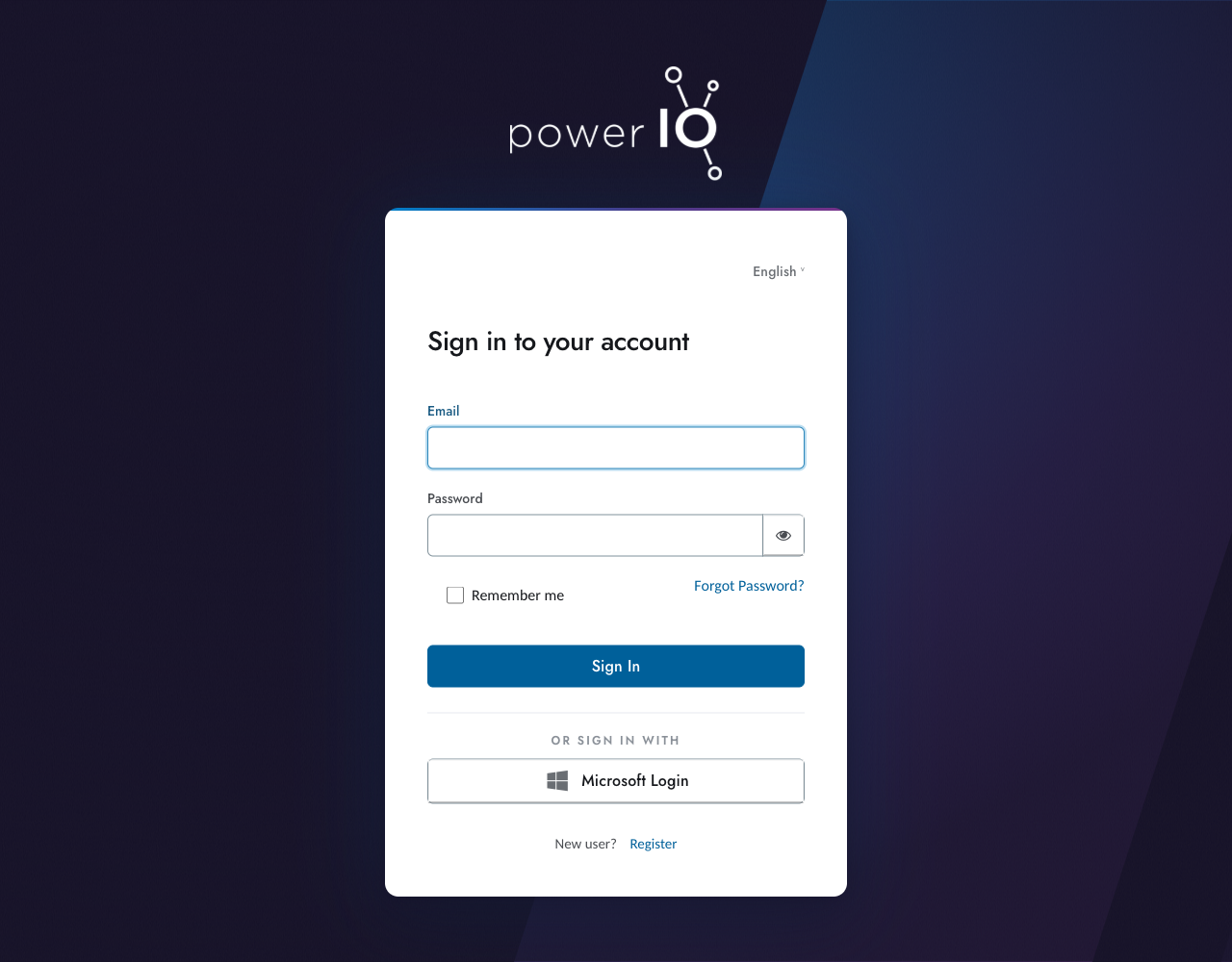
Open the address in your browser <code class="expression">space.vars.orbit\_url</code>. The sign-in page **Sign in to your account** appears.

<figure><img src="https://4132839365-files.gitbook.io/~/files/v0/b/gitbook-x-prod.appspot.com/o/spaces%2FcCl0f7fHRZGoIU6rAFRD%2Fuploads%2Fgit-blob-99afe535574386421774f8c3086319692bd2d11b%2Forbit-sign-in.png?alt=media" alt="Anmeldeseite von powerIO Orbit mit den Feldern Email und Password, dem Button Microsoft Login und dem Link Register"><figcaption><p>powerIO Orbit sign-in page</p></figcaption></figure>
{% endstep %}

{% step %}

### Register account

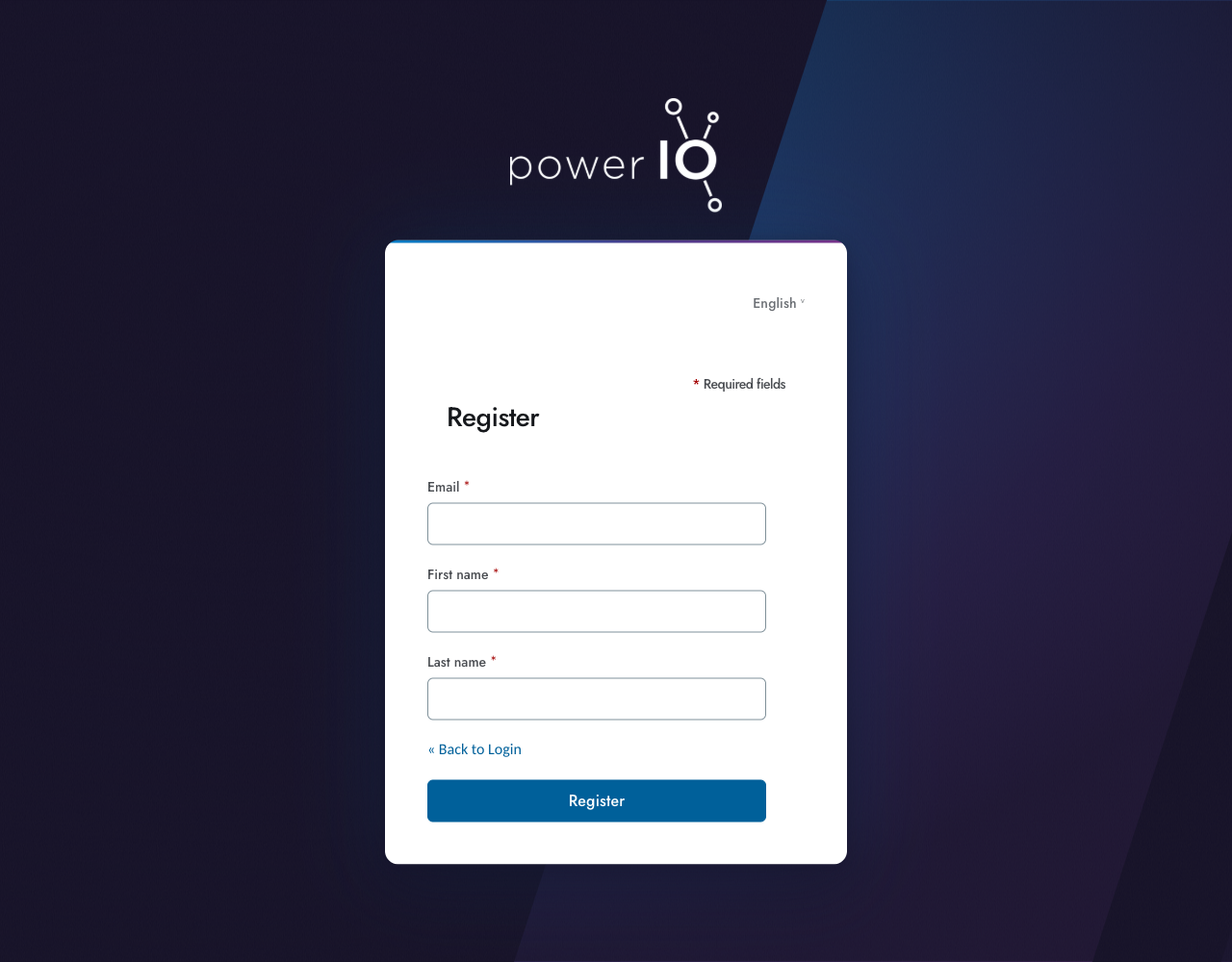
Click under **New user?** on **Register**. Enter **Email**, **First name** and **Last name** them. Click on **Register**.

<figure><img src="https://4132839365-files.gitbook.io/~/files/v0/b/gitbook-x-prod.appspot.com/o/spaces%2FcCl0f7fHRZGoIU6rAFRD%2Fuploads%2Fgit-blob-971bddbf07cb57163170c6b741a69ef5aa993df7%2Forbit-register.png?alt=media" alt="Formular Register mit den Pflichtfeldern Email, First name und Last name"><figcaption><p>Registration with email address and name</p></figcaption></figure>

Alternatively, on the sign-in page under **OR SIGN IN WITH** on **Microsoft login** and sign in with your Microsoft account.
{% endstep %}

{% step %}

### Wait for approval

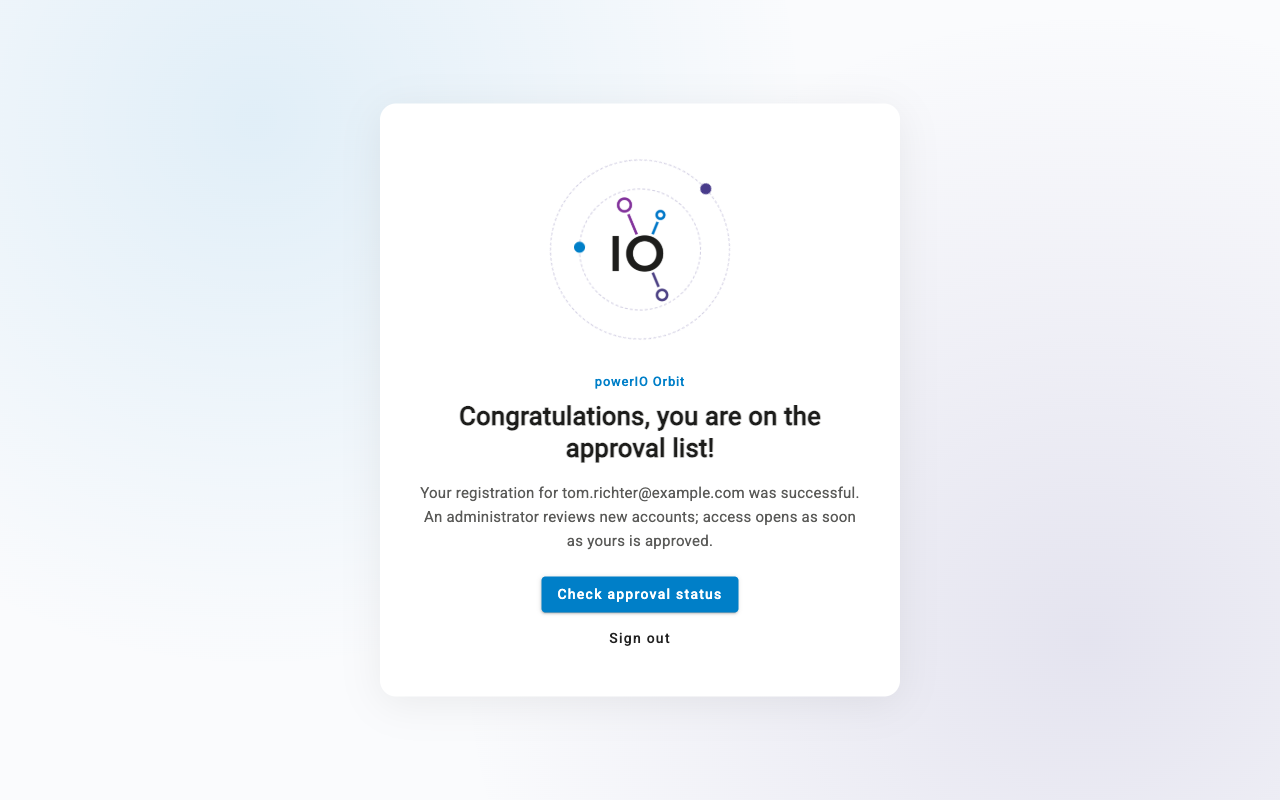
powerIO reviews new accounts and approves them. Until then, Orbit shows the message **Congratulations, you are on the approval list!**

<figure><img src="https://4132839365-files.gitbook.io/~/files/v0/b/gitbook-x-prod.appspot.com/o/spaces%2FcCl0f7fHRZGoIU6rAFRD%2Fuploads%2Fgit-blob-ccb1d3053c2fba1ff762d0f8fea4222eb719c538%2Forbit-pending-approval.png?alt=media" alt="Seite von powerIO Orbit mit der Meldung Congratulations, you are on the approval list und dem Button Check approval status"><figcaption><p>Your account is on the approval list</p></figcaption></figure>

Orbit does not send an email for approval. With **Check approval status** you can check at any time whether your account has been approved.
{% endstep %}
{% endstepper %}

{% hint style="success" %}
If your company already uses powerIO Orbit, have yourself invited by **Customer admin** someone in your organization. Once the invitation is accepted, the approval list no longer applies, and you can work immediately in the existing organization.
{% endhint %}

## Create the organization after approval

{% stepper %}
{% step %}

### Check approval

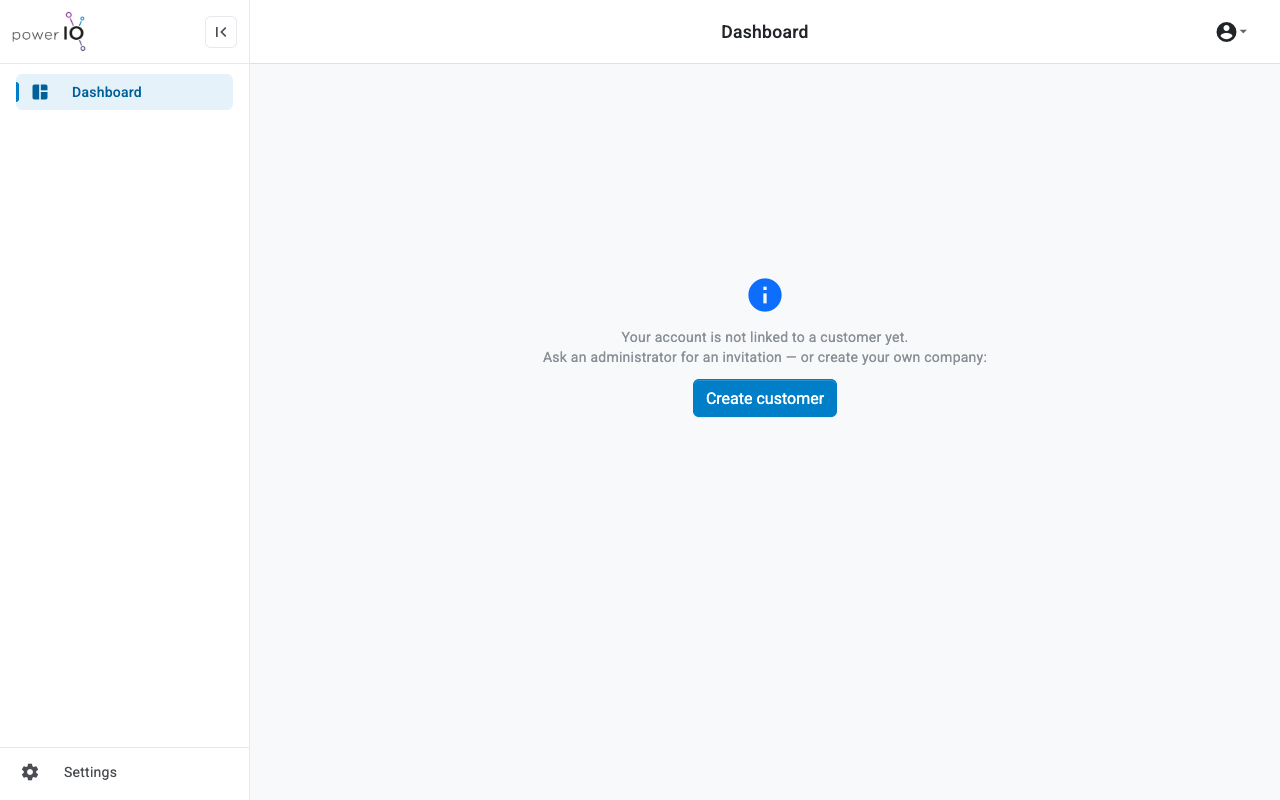
Click on **Check approval status**. After approval, Orbit opens the **Dashboard** with the note that your account is not yet assigned to any organization.

<figure><picture><source srcset="/files/6436f0f7ed68b1fc252af941c82f546adc5f7e9b" media="(prefers-color-scheme: dark)"><img src="https://4132839365-files.gitbook.io/~/files/v0/b/gitbook-x-prod.appspot.com/o/spaces%2FcCl0f7fHRZGoIU6rAFRD%2Fuploads%2Fgit-blob-6eb823ed327353e79b7728464d449a2be554385d%2Forbit-no-customer.png?alt=media" alt="Dashboard nach der Freigabe mit dem Hinweis Your account is not linked to a customer yet und dem Button Create customer"></picture><figcaption><p>Account approved, organization not yet created</p></figcaption></figure>
{% endstep %}

{% step %}

### Create organization

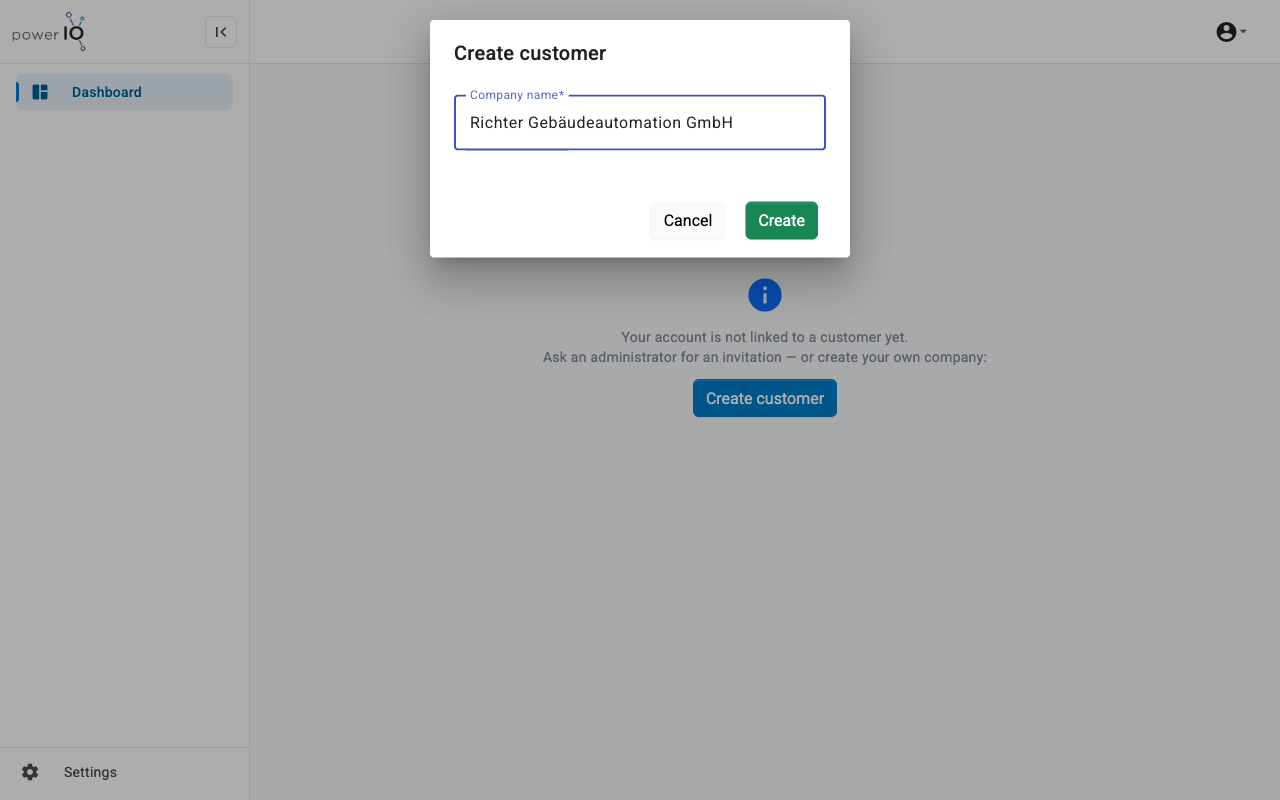
Click on **Create customer**. Enter in the field **Company name** the name of your company. Click on **Create**.

<figure><picture><source srcset="/files/1146271f8b983265f82fb1c23c16c9d6a194b569" media="(prefers-color-scheme: dark)"><img src="https://4132839365-files.gitbook.io/~/files/v0/b/gitbook-x-prod.appspot.com/o/spaces%2FcCl0f7fHRZGoIU6rAFRD%2Fuploads%2Fgit-blob-53d2008cfb52071f10a1ab29e942c526f10f975e%2Forbit-dialog-create-customer.png?alt=media" alt="Dialog Create customer mit dem Firmennamen Richter Gebäudeautomation GmbH"></picture><figcaption><p>Create customer dialog</p></figcaption></figure>
{% endstep %}

{% step %}

### Get started

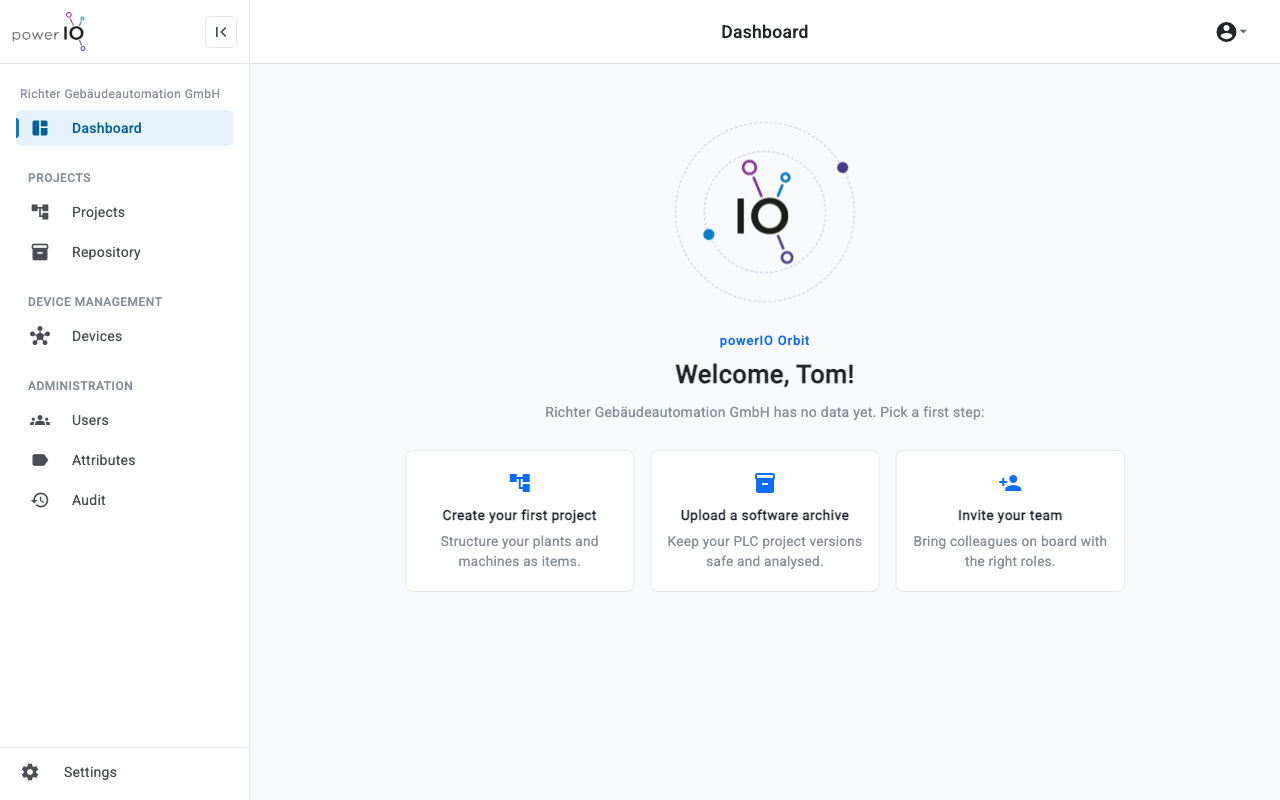
Orbit creates the organization and assigns you the role **Customer admin**. The dashboard welcomes you with three first steps.
{% endstep %}
{% endstepper %}

## Result

Your organization is set up, and you manage it as **Customer admin**. The dashboard offers the three first steps **Create your first project**, **Upload a software archive** and **Invite your team** there.

<figure><picture><source srcset="/files/cb520df6a35aba21984799f578b57a8af4ff0ac7" media="(prefers-color-scheme: dark)"><img src="https://4132839365-files.gitbook.io/~/files/v0/b/gitbook-x-prod.appspot.com/o/spaces%2FcCl0f7fHRZGoIU6rAFRD%2Fuploads%2Fgit-blob-d9989be318528c9718bc06d7e4a6b4f6e6ddded6%2Forbit-onboarding.png?alt=media" alt="Dashboard einer neuen Organisation mit der Begrüßung Welcome, Tom und den drei Karten für die ersten Schritte"></picture><figcaption><p>Welcome with three first steps</p></figcaption></figure>

## The first three steps

<table data-view="cards"><thead><tr><th></th><th></th><th></th><th data-hidden data-card-target data-type="content-ref"></th></tr></thead><tbody><tr><td><h4><i class="fa-sitemap" style="color:$primary;">:sitemap:</i></h4></td><td><h4>Create your first project</h4></td><td>Map your first building with collections and items.</td><td><a href="/hub/orbit/en/projects/projekte/projekt-anlegen.md">Create and structure a project</a></td></tr><tr><td><h4><i class="fa-cloud-arrow-up" style="color:$primary;">:cloud-arrow-up:</i></h4></td><td><h4>Upload a software archive</h4></td><td>Upload a controller project and have it analyzed.</td><td><a href="/hub/orbit/en/projects/projekte/softwarearchiv-hochladen.md">Upload software archive</a></td></tr><tr><td><h4><i class="fa-user-plus" style="color:$primary;">:user-plus:</i></h4></td><td><h4>Invite your team</h4></td><td>Bring your team and partners on board with suitable roles.</td><td><a href="/hub/orbit/en/users-and-roles/benutzer-einladen.md">Invite user</a></td></tr></tbody></table>


---

# Agent Instructions
This documentation is published with GitBook. GitBook is the documentation platform designed so that both humans and AI agents can read, navigate, and reason over technical content effectively. Learn more at gitbook.com.

## Querying This Documentation
If you need additional information that is not directly available in this page, you can query the documentation dynamically by asking a question.

Perform an HTTP GET request on the following URL with the `ask` and `goal` query parameters:

```
GET https://support.powerio.com/hub/orbit/en/getting-started/zugang-beantragen.md?ask=<question>&goal=<user_goal>
```

`ask` is the immediate question: it should be specific, self-contained, and written in natural language.
`goal` is what the user is ultimately trying to achieve, the reason they need the answer. Sharing it helps GitBook give you a better, more relevant answer. A goal is most helpful when it describes the outcome the user wants rather than restating the question. For example, with `ask=how do I create an API token`, a goal like `build a script that syncs our docs to a CMS` lets GitBook tailor the answer to that use case.

The response will contain a direct answer to the question and relevant excerpts and sources from the documentation.

Use this mechanism when the answer is not explicitly present in the current page, you need clarification or additional context, or you want to retrieve related documentation sections.