> For the complete documentation index, see [llms.txt](https://support.powerio.com/hub/llms.txt). Markdown versions of documentation pages are available by appending `.md` to page URLs; this page is available as [Markdown](https://support.powerio.com/hub/orbit/en/users-and-roles/benutzer-einladen.md).

# Invite user

How to invite a person to your organization by email in powerIO Orbit, as a member or as an external user, and set the roles in the process.

Whoever accepts an invitation works immediately in your organization and skips the approval list. This is the direct way to bring your team and your partners into Orbit.

## Member or External user

When inviting, you choose how the person belongs to your organization.

| Type              | Meaning                                                                                                                   |
| ----------------- | ------------------------------------------------------------------------------------------------------------------------- |
| **Member**        | The person is permanently part of your organization, for example from your project team.                                  |
| **External user** | The person belongs to another organization and receives only a role in yours, for example as an external project manager. |

An External user switches between their own organization and yours in the sidebar.

## Prerequisites

* You are logged in to powerIO Orbit with the role **Customer admin** logged in.
* You know the person's email address.

## Invite user

{% stepper %}
{% step %}

### Open the Users area

Click in the sidebar on **Users**. The tab **Users** shows all users in your organization.
{% endstep %}

{% step %}

### Open the Invite user dialog

Click on **Invite user**. The dialog **Invite user** appears.
{% endstep %}

{% step %}

### Complete the invitation

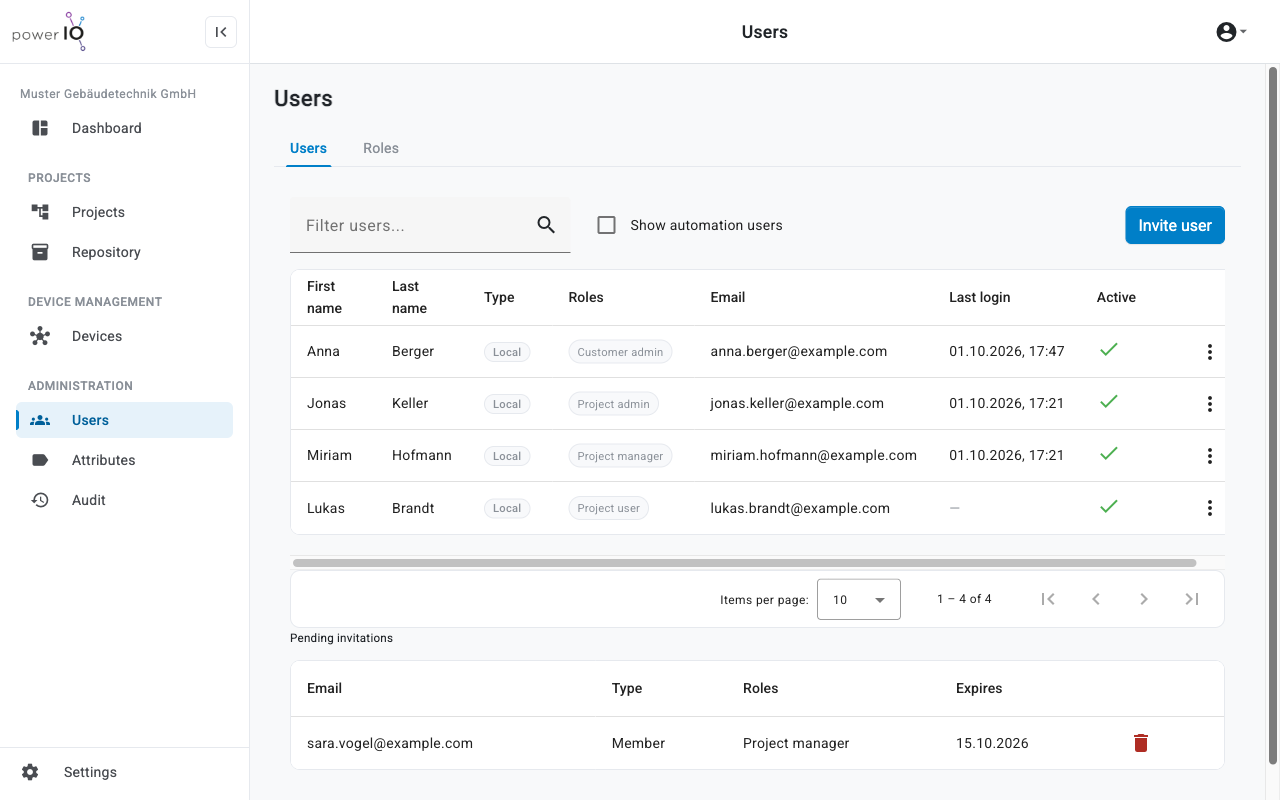
In the field **Email** enter the email address. Select **Member** or **External user**. Under **Roles** one or more roles. Optional: Under **Email language** the language of the email.

<figure><picture><source srcset="/files/7519ca802e134bd32e7640d56bf135a0c7eb7c42" media="(prefers-color-scheme: dark)"><img src="https://4132839365-files.gitbook.io/~/files/v0/b/gitbook-x-prod.appspot.com/o/spaces%2FcCl0f7fHRZGoIU6rAFRD%2Fuploads%2Fgit-blob-2aaecf03b9adb84d9ee8acb8614323319922f421%2Forbit-users-dialog-invite-user.png?alt=media" alt="Dialog Invite user mit E-Mail Adresse, Typ Member, Rolle Project manager und E-Mail Sprache Deutsch"></picture><figcaption><p>Completed Invite user dialog</p></figcaption></figure>
{% endstep %}

{% step %}

### Send invitation

Click on **Send invitation**. Orbit sends the email and reports **Invitation sent**.
{% endstep %}
{% endstepper %}

## Result

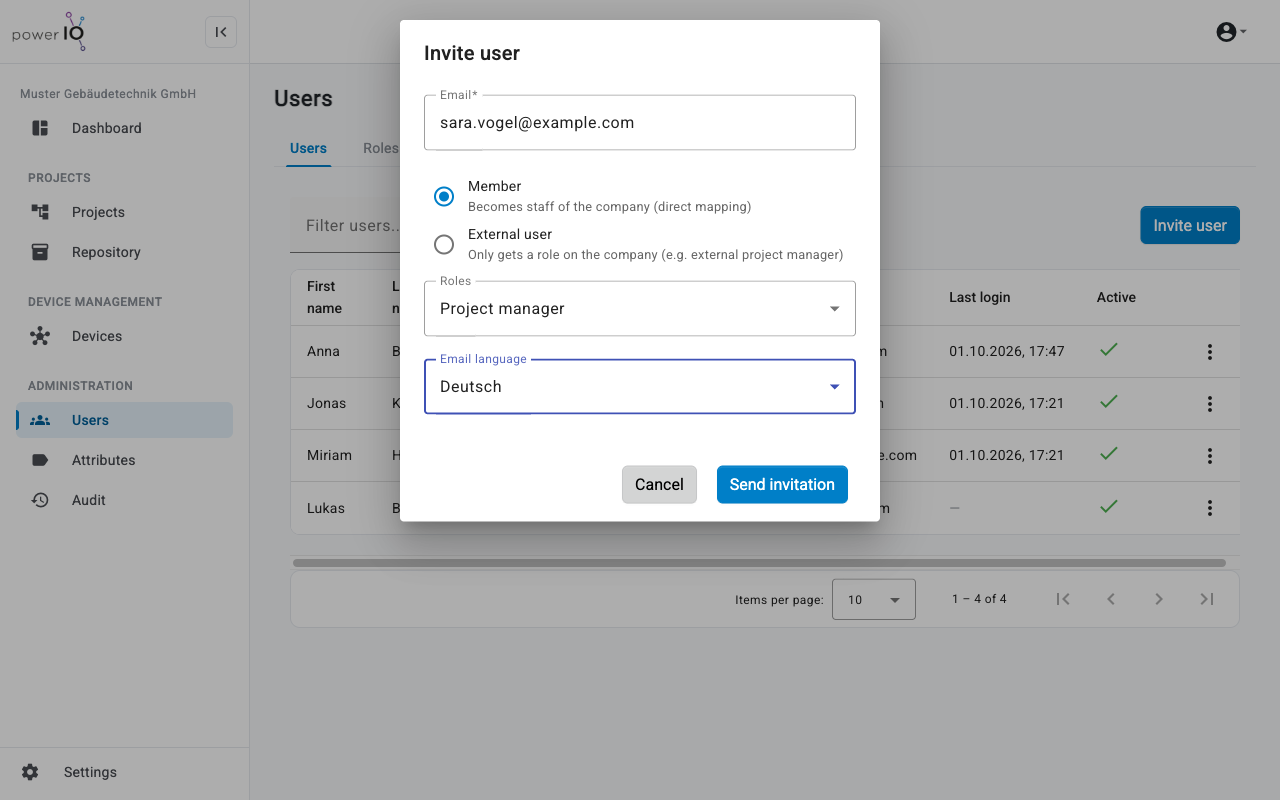
The invitation is under **Pending invitations** with type, roles, and the expiration date in the column **Expires**.

<figure><picture><source srcset="/files/db66d79761051af004e309af1d4393c16b46663a" media="(prefers-color-scheme: dark)"><img src="https://4132839365-files.gitbook.io/~/files/v0/b/gitbook-x-prod.appspot.com/o/spaces%2FcCl0f7fHRZGoIU6rAFRD%2Fuploads%2Fgit-blob-f6cd03111817ba0384f09d9c4650b35137ae6f98%2Forbit-users-pending-invitations.png?alt=media" alt="Bereich Users mit vier Benutzern und einer ausstehenden Einladung unter Pending invitations"></picture><figcaption><p>Pending invitation under Pending invitations</p></figcaption></figure>

## Accept invitation

The invited person opens the link from the email and logs in to powerIO Orbit. The login must be done with the email address to which the invitation was sent. With **Accept** the person joins the organization, with **Decline** they decline the invitation.

After <code class="expression">space.vars.invitation\_valid\_days</code> days the invitation expires. For an expired invitation, send a new invitation.

## Revoke invitation

Click under **Pending invitations** in the row of the invitation on the trash can icon (**Revoke invitation**). Confirm the prompt. The link in the email is then invalid.


---

# Agent Instructions
This documentation is published with GitBook. GitBook is the documentation platform designed so that both humans and AI agents can read, navigate, and reason over technical content effectively. Learn more at gitbook.com.

## Querying This Documentation
If you need additional information that is not directly available in this page, you can query the documentation dynamically by asking a question.

Perform an HTTP GET request on the following URL with the `ask` and `goal` query parameters:

```
GET https://support.powerio.com/hub/orbit/en/users-and-roles/benutzer-einladen.md?ask=<question>&goal=<user_goal>
```

`ask` is the immediate question: it should be specific, self-contained, and written in natural language.
`goal` is what the user is ultimately trying to achieve, the reason they need the answer. Sharing it helps GitBook give you a better, more relevant answer. A goal is most helpful when it describes the outcome the user wants rather than restating the question. For example, with `ask=how do I create an API token`, a goal like `build a script that syncs our docs to a CMS` lets GitBook tailor the answer to that use case.

The response will contain a direct answer to the question and relevant excerpts and sources from the documentation.

Use this mechanism when the answer is not explicitly present in the current page, you need clarification or additional context, or you want to retrieve related documentation sections.