> For the complete documentation index, see [llms.txt](https://support.powerio.com/hub/llms.txt). Markdown versions of documentation pages are available by appending `.md` to page URLs; this page is available as [Markdown](https://support.powerio.com/hub/orbit/en/projects/projekte/softwarearchiv-hochladen.md).

# Upload software archive

How to upload a controller project to an item in powerIO Orbit, as a new software archive or as a new version of an existing archive.

During upload, Orbit automatically recognizes CODESYS and SBC projects and, by default, reads values such as the CODESYS version. Every uploaded file is retained as a version.

## Supported files

A file may be up to <code class="expression">space.vars.upload\_max\_size</code> large. Your organization can under [Rules for uploads](/hub/orbit/en/administration/einstellungen.md#regeln-fur-uploads) set additional limits.

| Type        | Files                                                               |
| ----------- | ------------------------------------------------------------------- |
| **CODESYS** | CODESYS project (`.project`) or project archive (`.projectarchive`) |
| **SBC**     | PG5 project of a Saia PCD controller                                |

## Prerequisites

* You are signed in to powerIO Orbit.
* In the project tree, there is the item for the plant. A collection cannot store a software archive.
* Your role allows uploading files. This applies to all predefined roles.

## Upload software archive

{% stepper %}
{% step %}

### Select item

Click in the sidebar on **Projects**. Click the item in the project tree. The item details appear on the right.
{% endstep %}

{% step %}

### Upload file

Drag the file in the section **Software archive** onto the field **Drop file here or click to select**. Alternatively, click the field and select the file. Orbit uploads the file immediately and shows the progress.
{% endstep %}

{% step %}

### Wait for analysis

After upload, the archive shows the type and status **Analysing…**. The analysis takes up to <code class="expression">space.vars.analysis\_max\_minutes</code> minutes, the result appears automatically.
{% endstep %}
{% endstepper %}

{% hint style="success" %}
The upload continues if you open another page within Orbit. If you leave Orbit during an upload, the browser asks for confirmation.
{% endhint %}

## Result

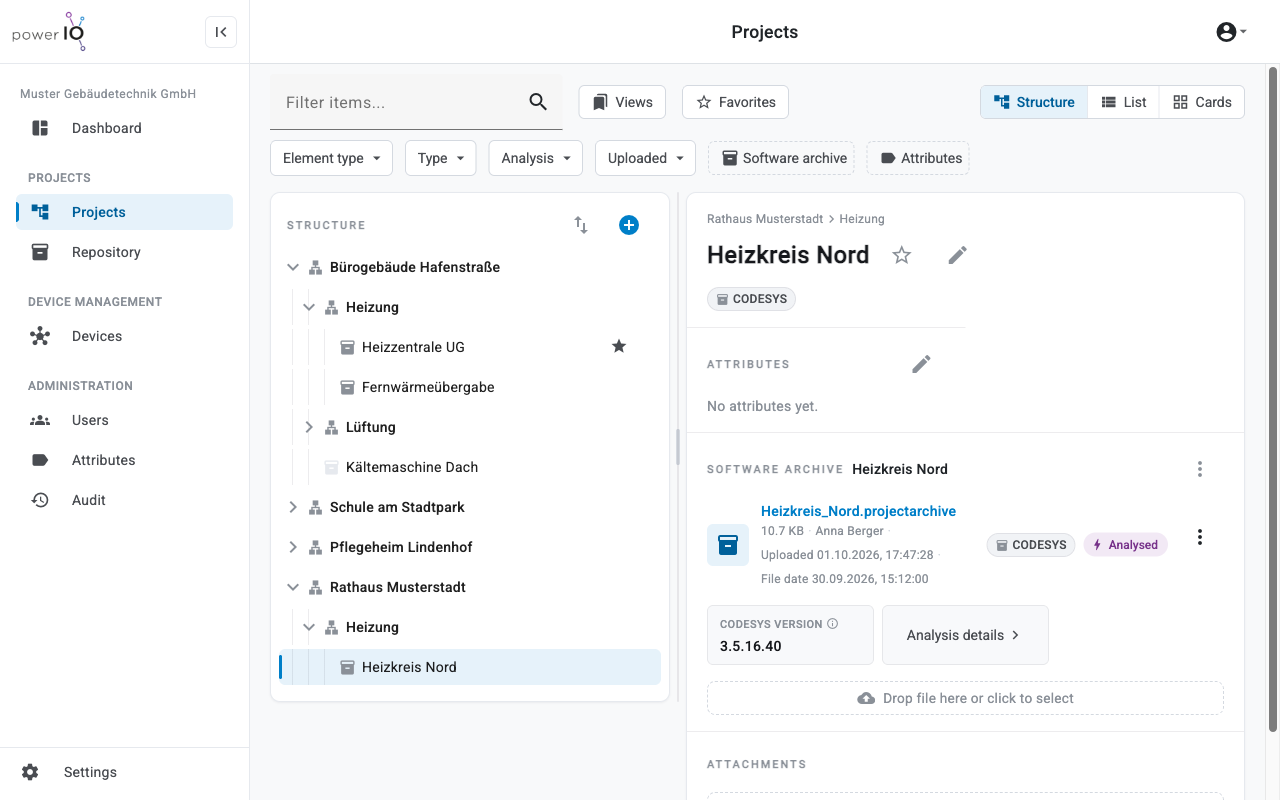
The archive shows the status **Analysed** and the key values, for CODESYS for example **CODESYS VERSION**. More values are shown in **Analysis details**.

<figure><picture><source srcset="/files/822fae09e97adaf5ff87cedd70161495d206a587" media="(prefers-color-scheme: dark)"><img src="https://4132839365-files.gitbook.io/~/files/v0/b/gitbook-x-prod.appspot.com/o/spaces%2FcCl0f7fHRZGoIU6rAFRD%2Fuploads%2Fgit-blob-631294e665c81bfb03618878bf6607954d99a8dc%2Forbit-projects-softwarearchiv-analysiert.png?alt=media" alt="Item Heizkreis Nord mit hochgeladenem CODESYS Archiv im Status Analysed und der CODESYS Version"></picture><figcaption><p>Uploaded and analysed CODESYS archive</p></figcaption></figure>

| Status              | Meaning                                     |
| ------------------- | ------------------------------------------- |
| **Analysed**        | Orbit has read the values from the archive. |
| **Analysing…**      | The analysis is running.                    |
| **Analysis failed** | The analysis was unsuccessful.              |
| **Not analysed**    | No analysis is available for this version.  |

## Upload new version

Drag the new file onto the field **Drop file here or click to select** below the existing archive. Alternatively, click the three-dot menu icon next to the archive and select **Upload new version**. Orbit saves the file as a new version. Older versions are available under **Version history** and remain available for download.

## Upload attachments

Upload attachments in the same way in the section **Attachments** up. Orbit accepts any file type there, for example PDF documents with plant schematics.


---

# Agent Instructions
This documentation is published with GitBook. GitBook is the documentation platform designed so that both humans and AI agents can read, navigate, and reason over technical content effectively. Learn more at gitbook.com.

## Querying This Documentation
If you need additional information that is not directly available in this page, you can query the documentation dynamically by asking a question.

Perform an HTTP GET request on the following URL with the `ask` and `goal` query parameters:

```
GET https://support.powerio.com/hub/orbit/en/projects/projekte/softwarearchiv-hochladen.md?ask=<question>&goal=<user_goal>
```

`ask` is the immediate question: it should be specific, self-contained, and written in natural language.
`goal` is what the user is ultimately trying to achieve, the reason they need the answer. Sharing it helps GitBook give you a better, more relevant answer. A goal is most helpful when it describes the outcome the user wants rather than restating the question. For example, with `ask=how do I create an API token`, a goal like `build a script that syncs our docs to a CMS` lets GitBook tailor the answer to that use case.

The response will contain a direct answer to the question and relevant excerpts and sources from the documentation.

Use this mechanism when the answer is not explicitly present in the current page, you need clarification or additional context, or you want to retrieve related documentation sections.
