> For the complete documentation index, see [llms.txt](https://support.powerio.com/hub/llms.txt). Markdown versions of documentation pages are available by appending `.md` to page URLs; this page is available as [Markdown](https://support.powerio.com/hub/powerio-r-system/en/t1.b100/tutorials/factory-reset.md).
# Factory Settings
Resetting the powerIO® Box T1.B100 to factory settings while keeping the current configuration or as a complete restore.
The powerIO®-Box T1.B100 can be reset to factory settings. There are two variants.
* Restore the powerIO®-Box T1.B100 to factory settings with *keeping the current configuration*.
* Restore the powerIO®-Box T1.B100 to factory settings with *resetting the configuration to the delivery state*.
{% hint style="info" %}
If the powerIO®-Box T1.B100 is reset to factory settings, all installed *Applications* are also lost. The powerIO®-Box T1.B100 is thereby reset to the **shipped firmware** state.
{% endhint %}
**Example - firmware version during restoration:**\
The powerIO®-Box T1.B100 is shipped with firmware version `v2.19` During operation, a firmware update with version `v2.22` was performed.\
After restoration, the powerIO®-Box T1.B100 is reset to the delivery state and thus the active firmware version `v2.22` is discarded and firmware version `v2.19` is active.
## Restore factory settings - process[ ](https://github.com/powerIO-GmbH/support-hub-space-powerio-system/blob/main/t1.b100/tutorials/broken-reference/README.md)
### Restart system[ ](https://github.com/powerIO-GmbH/support-hub-space-powerio-system/blob/main/t1.b100/tutorials/broken-reference/README.md)
* Open the web interface of the powerIO®-Box T1.B100. *http\://{IP address}:8080*
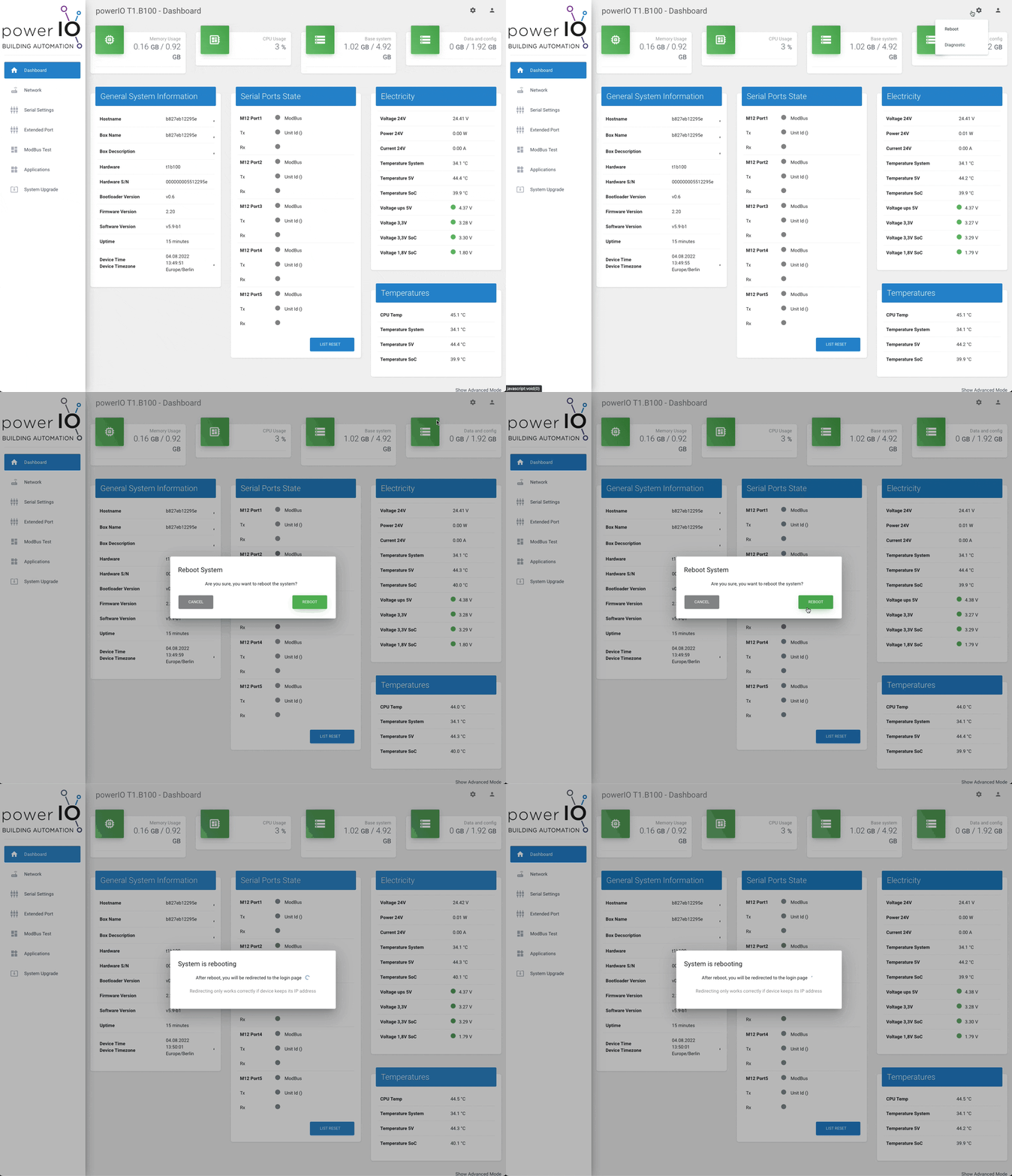
* Navigate to the *Settings* (gear icon) and select *Reboot*
powerIO-Box T1.B100 web interface - Reboot
***Alternative - disconnect power***
If you do not have access to the web interface, disconnect the power from the powerIO®-Box T1.B100 and wait until all LEDs are off.
### Procedure[ ](https://github.com/powerIO-GmbH/support-hub-space-powerio-system/blob/main/t1.b100/tutorials/broken-reference/README.md)
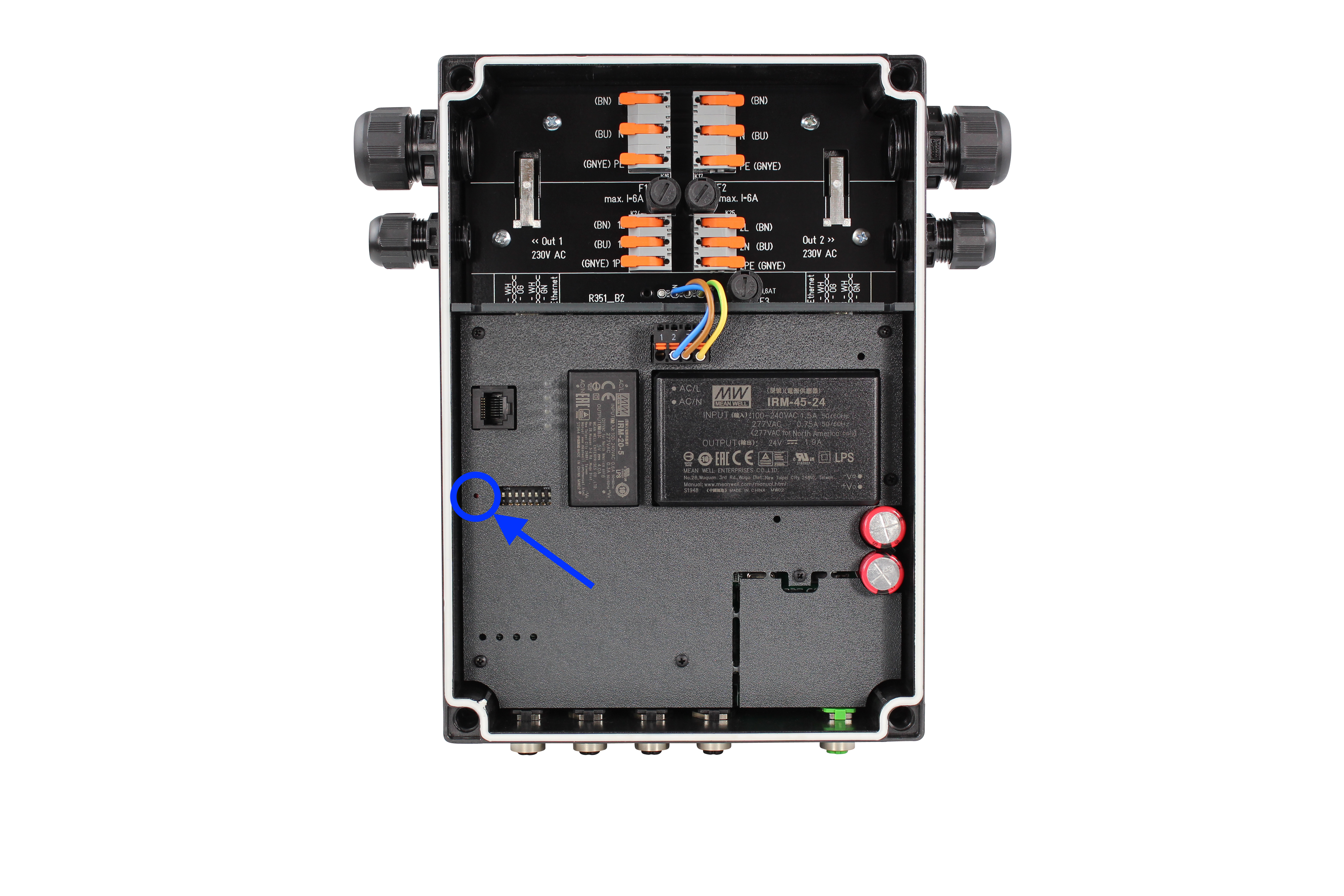
#### **1.)** Start the device and ***`Reset button` keep pressed*** - Pay attention to the LED display.
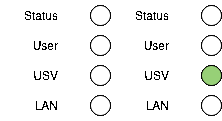
State when the *UPS* is still charging:
State when the *UPS* is already charged:
{% hint style="info" %}
The LED *UPS* blinks for different lengths of time. This is because the blinking of the LED indicates that the *UPS* is being charged. If a restart is performed, the LED may not blink at all, but instead it will immediately `green`.
{% endhint %}
####
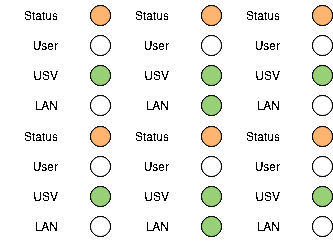
#### **2.)** ***Continue to press the `Reset button` keep pressed*** - Pay attention to the LED view.
{% hint style="info" %}
The LED *LAN* may blink differently.
{% endhint %}
####
#### **3.)** As soon as the LED *Status* changes to `orange` , ***`Reset button`\*\*\*\*\*\*\*\* \*\*\*\*release***
#### **4.)** Then ***`Reset button`\*\*\*\*\*\*\*\* \*\*\*\*immediately press and hold again***
####
#### **5.)** ***`Reset button`\*\*\*\*\*\*\*\* \*\*\*\*hold pressed for the appropriate length of time***
\
Option 1 - **Keep the current configuration**
* For **2 to 7 seconds** keep pressed
* Wait until the LED *Status* `green` becomes\

* ***`Reset button`\*\*\*\*\*\*\*\* \*\*\*\*release***
Option 2 - **Reset the configuration to the delivery state**
* For **>= 8 seconds** keep pressed
* Wait until the LED *Status* `red` becomes\

> *Info:* *The LED Status remains while holding the Reset button `green` until >=8 seconds are reached. Only then will the LED `red`.*
* ***`Reset button`\*\*\*\*\*\*\*\* \*\*\*\*release***
#### 6.) Wait until the restoration is complete.
* Wait until the LED *Status* is no longer active.\

> *Info:* This process can take up to **5 minutes** take
* The process is completely complete when the LED *Status* in the *1 second* interval blinks.\

> *Info:* This process can take up to **1 minute** take
{% hint style="warning" %}
Please make sure that the power supply is not interrupted during this process. If the power supply is interrupted during restoration, this process must be repeated.
{% endhint %}
###
---
# Agent Instructions
This documentation is published with GitBook. GitBook is the documentation platform designed so that both humans and AI agents can read, navigate, and reason over technical content effectively. Learn more at gitbook.com.
## Querying This Documentation
If you need additional information that is not directly available in this page, you can query the documentation dynamically by asking a question.
Perform an HTTP GET request on the current page URL with the `ask` query parameter, and the optional `goal` query parameter:
```
GET https://support.powerio.com/hub/powerio-r-system/en/t1.b100/tutorials/factory-reset.md?ask=&goal=
```
`ask` is the immediate question: it should be specific, self-contained, and written in natural language.
`goal` is optional and describes the broader end goal you are ultimately trying to accomplish on behalf of the user. GitBook uses it to tailor the answer towards what is most useful for that goal.
The response will contain a direct answer to the question and relevant excerpts and sources from the documentation.
Use this mechanism when the answer is not explicitly present in the current page, you need clarification or additional context, or you want to retrieve related documentation sections.