> For the complete documentation index, see [llms.txt](https://support.powerio.com/hub/llms.txt). Markdown versions of documentation pages are available by appending `.md` to page URLs; this page is available as [Markdown](https://support.powerio.com/hub/orbit/verwaltung/einstellungen/regeln-fuer-uploads.md).

# Regeln für Uploads

So legen Sie in powerIO Orbit Regeln für neue Softwarearchive fest: Versionsgrenze, Dateidatum, Dateiname und Dateigröße mit Ausnahmen pro Projekt.

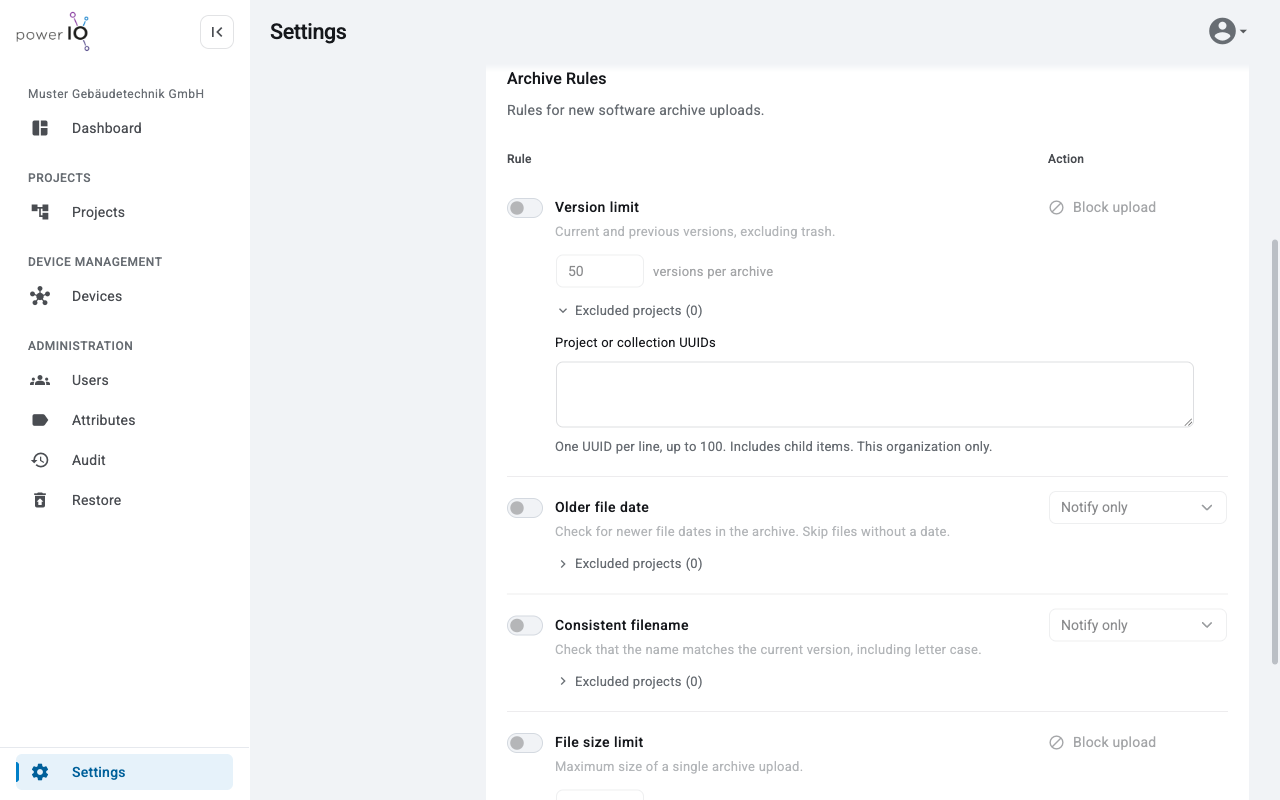
Unter **Archive Rules** legt der **Customer admin** fest, welche neuen Softwarearchive Orbit annimmt. Jede Regel prüft einen Upload und reagiert mit einem Hinweis, einer Rückfrage oder einer Ablehnung. Alle Regeln sind in der Grundeinstellung ausgeschaltet.

<figure><picture><source srcset="/files/sWonVqkBQEQ5xRhHbZmo" media="(prefers-color-scheme: dark)"><img src="https://304133783-files.gitbook.io/~/files/v0/b/gitbook-x-prod.appspot.com/o/spaces%2FcCl0f7fHRZGoIU6rAFRD%2Fuploads%2Fgit-blob-7916fe3e59f832e05b1c76a11dddb2cd4c217649%2Forbit-settings-upload-regeln.png?alt=media" alt="Abschnitt Archive Rules mit den Regeln Version limit, Older file date, Consistent filename und File size limit und der aufgeklappten Liste Excluded projects"></picture><figcaption><p>Regeln für Uploads mit aufgeklappten Ausnahmen</p></figcaption></figure>

## Regeln im Überblick

| Regel                   | Prüfung                                                                                                                     | Grundwert       | Mögliche Aktion                                             |
| ----------------------- | --------------------------------------------------------------------------------------------------------------------------- | --------------- | ----------------------------------------------------------- |
| **Version limit**       | Zahl der Versionen eines Archivs, aktuelle und frühere Versionen ohne Papierkorb                                            | 50 Versionen    | **Block upload**                                            |
| **Older file date**     | Eine vorhandene Version hat ein neueres Dateidatum als die neue Datei. Dateien ohne Datum prüft Orbit nicht.                | **Notify only** | **Notify only**, **Require confirmation**, **Block upload** |
| **Consistent filename** | Der Dateiname weicht von der aktuellen Version ab, auch in der Groß- und Kleinschreibung. Der erste Upload ist ausgenommen. | **Notify only** | **Notify only**, **Require confirmation**                   |
| **File size limit**     | Größe einer einzelnen Datei in MiB                                                                                          | 512 MiB         | **Block upload**                                            |

Bei einer Versionsgrenze von 50 nimmt Orbit die 50. Version an und lehnt die 51. ab. Orbit löscht dabei nie ältere Versionen.

## Aktionen beim Upload

| Aktion                   | Wirkung beim Upload                                                                                                  |
| ------------------------ | -------------------------------------------------------------------------------------------------------------------- |
| **Notify only**          | Orbit lädt die Datei hoch und zeigt einen Hinweis.                                                                   |
| **Require confirmation** | Orbit fragt nach. Mit **Upload anyway** laden Sie die Datei trotzdem hoch, beim Abbrechen verwirft Orbit den Upload. |
| **Block upload**         | Orbit lehnt die Datei ab, die aktuelle Version bleibt unverändert.                                                   |

Orbit prüft die Regeln vor der Übertragung, soweit das möglich ist. Das Dateidatum steht oft erst im Archiv, deshalb meldet sich **Older file date** manchmal erst nach der Übertragung.

## Regel einrichten

1. Klicken Sie in der Seitenleiste auf **Settings** und links auf **Archive Rules**.
2. Schalten Sie die Regel mit dem Schalter links neben ihrem Namen ein.
3. Optional: Ändern Sie die Grenze unter **versions per archive** oder **MiB per file**.
4. Optional: Wählen Sie rechts die Aktion, zum Beispiel **Require confirmation**.
5. Klicken Sie auf **Save changes**.

Orbit meldet **Changes saved**, und die Regel gilt ab dem nächsten Upload. Das Audit Log hält jede Änderung der Regeln fest. Andere Rollen sehen die Regeln mit dem Hinweis **Only customer admins can change these rules.**

## Projekte von einer Regel ausnehmen

Jede Regel hat eine eigene Liste **Excluded projects**. Eine Ausnahme gilt für ein Projekt oder eine Collection und für alle Elemente darunter.

1. Klicken Sie unter der Regel auf **Excluded projects**. Das Feld **Project or collection UUIDs** erscheint.
2. Tragen Sie je Zeile die UUID eines Projekts oder einer Collection ein, bis zu 100 Einträge.
3. Klicken Sie auf **Save changes**.

Die UUID eines Elements steht in der Adresszeile des Browsers hinter `/projects/`, wenn Sie das Element im Bereich **Projects** öffnen. Orbit nimmt nur Elemente der eigenen Organisation an.

## Grenzen der Regeln

Die Regeln gelten nur für neue Uploads von Softwarearchiven. Vorhandene Versionen bleiben erhalten, und Anhänge prüft Orbit nicht. Ausnahmen heben weder die Grenzen des Tarifs noch die Höchstgröße von <code class="expression">space.vars.upload\_max\_size</code> pro Datei auf.

Liegt ein Archiv bereits über der Versionsgrenze, lehnt Orbit weitere Uploads ab. Ändern Sie dann die Grenze, nehmen Sie das Projekt aus oder löschen Sie ältere Versionen.


---

# Agent Instructions
This documentation is published with GitBook. GitBook is the documentation platform designed so that both humans and AI agents can read, navigate, and reason over technical content effectively. Learn more at gitbook.com.

## Querying This Documentation
If you need additional information that is not directly available in this page, you can query the documentation by asking a question.

Perform an HTTP GET request on the following URL with the `ask` and `goal` query parameters:

```
GET https://support.powerio.com/hub/orbit/verwaltung/einstellungen/regeln-fuer-uploads.md?ask=<question>&goal=<user_goal>
```

`ask` is the immediate question: it should be specific, self-contained, and written in natural language.
`goal` is what the user is ultimately trying to achieve, the reason they need the answer. Sharing it helps GitBook give you a better, more relevant answer. A goal is most helpful when it describes the outcome the user wants rather than restating the question. For example, with `ask=how do I create an API token`, a goal like `automate deployments from our CI pipeline` lets GitBook tailor the answer to that use case.

The response will contain a direct answer to the question and relevant excerpts and sources from the documentation.

Use this mechanism when the answer is not explicitly present in the current page, you need clarification or additional context, or you want to retrieve related documentation sections.
