> For the complete documentation index, see [llms.txt](https://support.powerio.com/hub/llms.txt). Markdown versions of documentation pages are available by appending `.md` to page URLs; this page is available as [Markdown](https://support.powerio.com/hub/orbit/erste-schritte/oberflaeche.md).
# Oberfläche im Überblick
Die Oberfläche von powerIO Orbit besteht aus Seitenleiste, Kopfzeile und Arbeitsbereich. Die Seite erklärt die Bereiche, das Dashboard und das Benutzermenü.
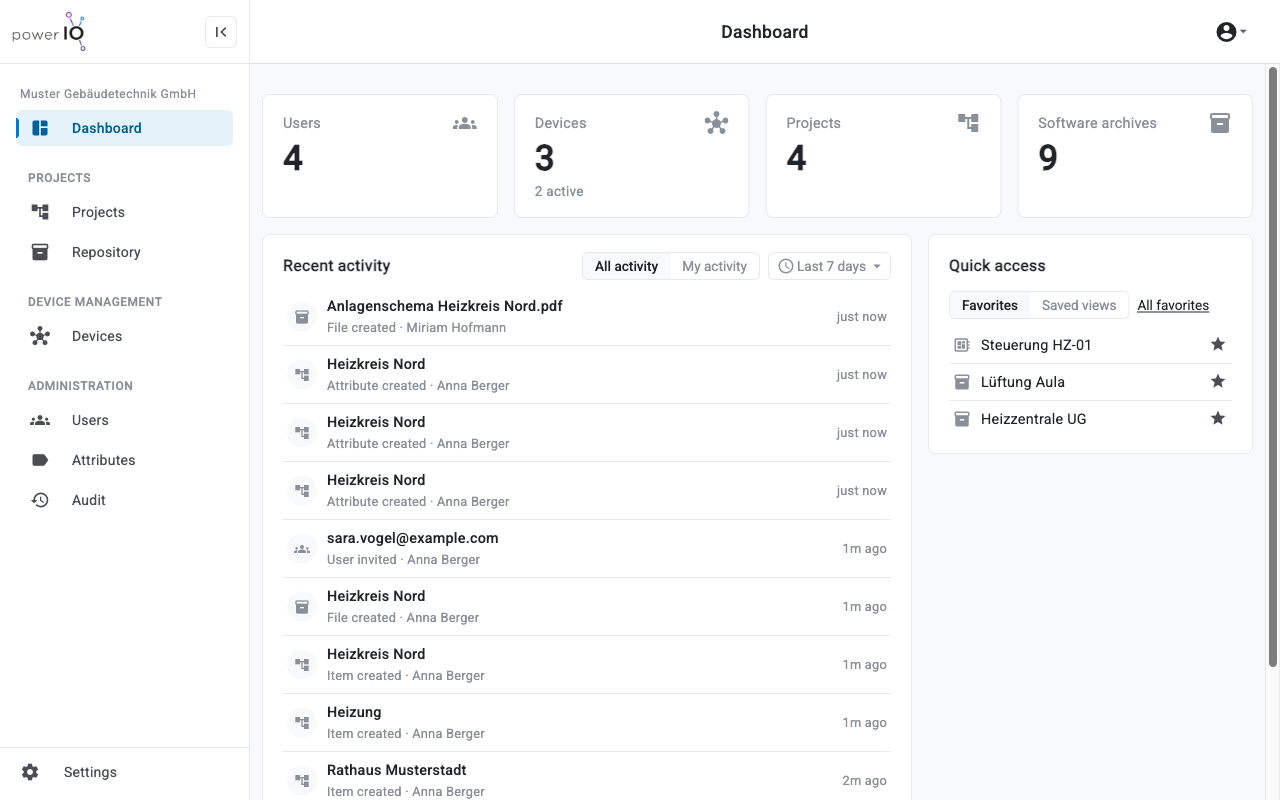
Die Oberfläche von powerIO Orbit besteht aus der Seitenleiste links, der Kopfzeile oben und dem Arbeitsbereich. Welche Bereiche die Seitenleiste zeigt, hängt von Ihren Rollen und vom Tarif Ihrer Organisation ab.
Dashboard mit Seitenleiste, Kennzahlen und Schnellzugriff
## Bereiche in der Seitenleiste
Oben in der Seitenleiste steht der Name Ihrer Organisation. Wenn Sie zu mehreren Organisationen gehören, klicken Sie auf den Namen und wählen eine andere Organisation.
| Bereich | Inhalt |
| -------------- | ---------------------------------------------------------------------------------------------------------- |
| **Dashboard** | Kennzahlen, letzte Aktivitäten und Favoriten |
| **Projects** | Projekte als Baum aus Collections und Items mit Softwarearchiven und Anhängen |
| **Repository** | Liste aller Softwarearchive der Organisation |
| **Devices** | powerIO Geräte der Organisation mit Status und Versionen |
| **Users** | Benutzer, Einladungen und Rollen |
| **Attributes** | Gemeinsamer Katalog der Attribute für Elemente in Projekten |
| **Audit** | Protokoll aller Änderungen und Wiederherstellen gelöschter Inhalte |
| **Settings** | Tabs **Account**, **Organization** und **Settings** mit Profil, Sprache und Einstellungen der Organisation |
Mit **Collapse sidebar** klappen Sie die Seitenleiste ein, um mehr Platz für den Arbeitsbereich zu erhalten.
## Dashboard
Das **Dashboard** erscheint nach der Anmeldung. Oben zeigt es die Zahl der **Users**, **Devices**, **Projects** und **Software archives**. Unter **Devices** steht zusätzlich, wie viele Geräte aktiv sind.
**Recent activity** listet die letzten Änderungen in Ihrer Organisation. Mit **All activity** und **My activity** wählen Sie, ob Sie alle Änderungen oder nur Ihre eigenen sehen. Über die Zeitauswahl, zum Beispiel **Last 7 days**, legen Sie den Zeitraum fest.
**Quick access** zeigt Ihre **Favorites** und **Saved views**. Ein Element oder ein Gerät wird zum Favoriten, wenn Sie auf das Sternsymbol daneben klicken.
## Benutzermenü
Das Benutzermenü öffnen Sie mit dem Personensymbol rechts oben. Das Menü zeigt Ihren Namen, Ihre E-Mail Adresse und die aktive Organisation.
| Eintrag | Funktion |
| --------------------------------------- | ------------------------------------------------------------------------------- |
| **Preferences** | Öffnet die Einstellungen mit Profil und Sprache. |
| **Logout** | Meldet Sie von powerIO Orbit ab. |
| Sonnensymbol, Mondsymbol, Monitorsymbol | Schaltet die Darstellung auf hell, dunkel oder auf die Einstellung des Systems. |
---
# Agent Instructions
This documentation is published with GitBook. GitBook is the documentation platform designed so that both humans and AI agents can read, navigate, and reason over technical content effectively. Learn more at gitbook.com.
## Querying This Documentation
If you need additional information that is not directly available in this page, you can query the documentation dynamically by asking a question.
Perform an HTTP GET request on the current page URL with the `ask` query parameter, and the optional `goal` query parameter:
```
GET https://support.powerio.com/hub/orbit/erste-schritte/oberflaeche.md?ask=&goal=
```
`ask` is the immediate question: it should be specific, self-contained, and written in natural language.
`goal` is optional and describes the broader end goal you are ultimately trying to accomplish on behalf of the user. GitBook uses it to tailor the answer towards what is most useful for that goal.
The response will contain a direct answer to the question and relevant excerpts and sources from the documentation.
Use this mechanism when the answer is not explicitly present in the current page, you need clarification or additional context, or you want to retrieve related documentation sections.