> For the complete documentation index, see [llms.txt](https://support.powerio.com/hub/llms.txt). Markdown versions of documentation pages are available by appending `.md` to page URLs; this page is available as [Markdown](https://support.powerio.com/hub/orbit/en/projects/projekte/filter-und-ansichten.md).
# Filters, views, and favorites
How to quickly find the right system in powerIO Orbit: with search and filters, as a saved view for the team, and via personal favorites.
Search and filters narrow the project tree to the relevant items. A **View** saves this selection with view and columns. Favorites take you to individual elements and devices with a click.
## Search elements
The search field **Filter items...** above the project tree searches names, comments, attribute values, and an element's path. Orbit does not search results from archive analysis.
## Filter elements
Above the project tree are the filters **Element type**, **Type**, **Analysis** and **Uploaded**. More filters can be found under **Software archive** and **Attributes**, for example any attribute marked as a filter.
Filter by the attribute trade
The following rules apply to filters:
* Orbit combines multiple values in a filter with or, for example heating or ventilation.
* Orbit combines multiple filters with and. An item must satisfy all filters.
* The number next to a value shows how many items with the current selection have that value.
An active filter appears as a button with its value, for example **Trade: ventilation**. The cross next to it removes it, **Clear filters** removes all filters. As long as search or filters are active, Orbit searches all levels of the project tree.
Filtered list with additional year of construction column
In the view **List** select under **Columns** additional columns, including attributes such as year of construction. Clicking a column header sorts the list.
## Save view
{% stepper %}
{% step %}
### Set selection
Set search, filters, view, and columns as you want the view saved.
{% endstep %}
{% step %}
### Open Views dialog
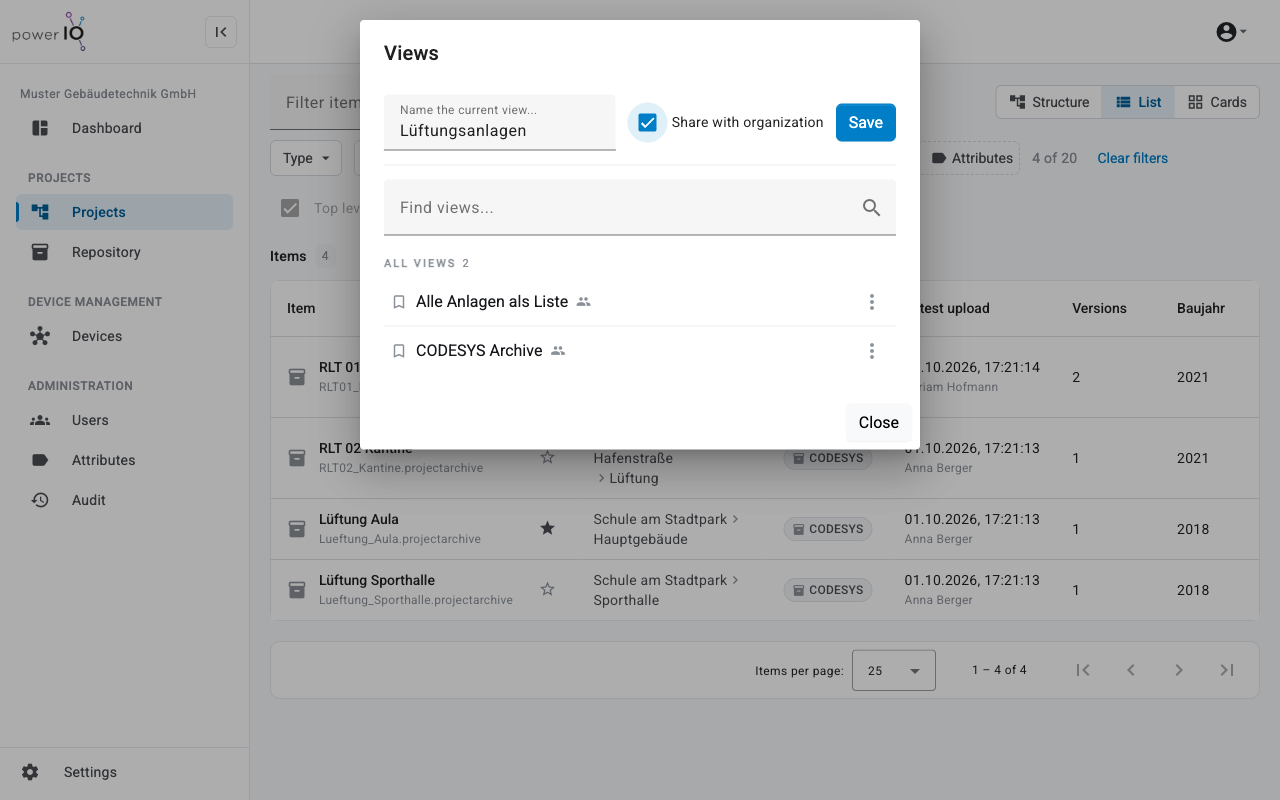
Click on **Views**. The dialog **Views** appears.
{% endstep %}
{% step %}
### Assign a name
Enter under **Name the current view\...** a name. Optional: Activate **Share with organization**, so that everyone in your organization can use the view.
Save current selection as view
{% endstep %}
{% step %}
### Save
Click on **Save**. Orbit reports **View saved**.
{% endstep %}
{% endstepper %}
You open a saved view in the dialog **Views** by clicking its name. Your most recently used views are also in the **Dashboard** under **Quick access** in the tab **Saved views**.
More commands are available in the menu of a view.
| Command | Effect |
| --------------------------------------------- | --------------------------------------------------------------------------------------------------------------------------------------------------------- |
| **Update with current filters** | Replaces the saved selection with the current one. |
| **Rename view** | Changes the name of the view. |
| **Share with organization**, **Stop sharing** | Shares the view with the organization or stops sharing. |
| **Set as organization default** | Makes the view the start view in the area **Projects**, when someone opens the area without their own selection. This command has the **Customer admin**. |
| **Remove** | Deletes the view. |
The address in the browser contains search, filters, and view. If you share the address, the other person sees the same selection.
## Use favorites
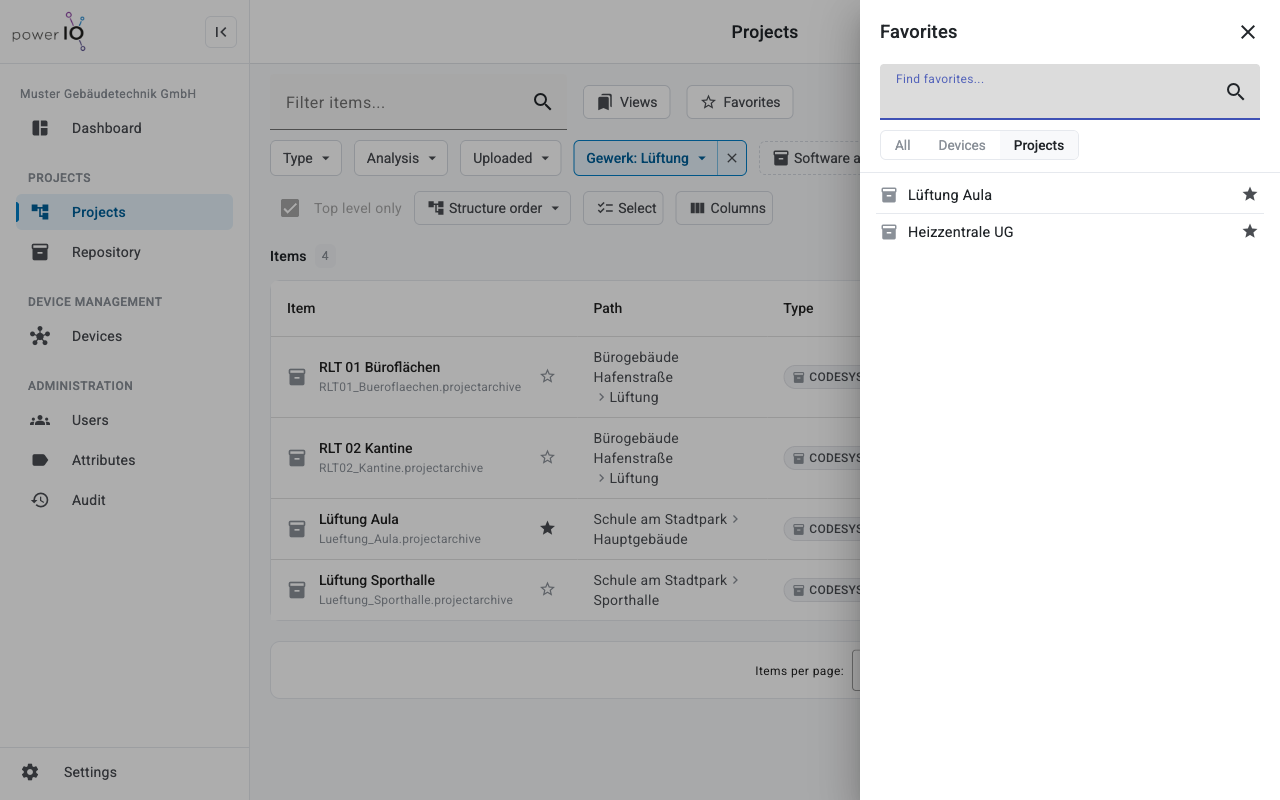
Clicking the star icon next to an element or a device makes it a favorite (**Add to favorites** ). Another click removes it again. Favorites are personal, and each user has up to 500 favorites per organization.
In the area **Projects** opens **Favorites** the list of your favorites with search and the tabs **All**, **Devices** and **Projects**. In the **Dashboard** the favorites are under **Quick access**.
Favorites in the Projects area
---
# Agent Instructions
This documentation is published with GitBook. GitBook is the documentation platform designed so that both humans and AI agents can read, navigate, and reason over technical content effectively. Learn more at gitbook.com.
## Querying This Documentation
If you need additional information that is not directly available in this page, you can query the documentation dynamically by asking a question.
Perform an HTTP GET request on the following URL with the `ask` and `goal` query parameters:
```
GET https://support.powerio.com/hub/orbit/en/projects/projekte/filter-und-ansichten.md?ask=&goal=
```
`ask` is the immediate question: it should be specific, self-contained, and written in natural language.
`goal` is what the user is ultimately trying to achieve, the reason they need the answer. Sharing it helps GitBook give you a better, more relevant answer. A goal is most helpful when it describes the outcome the user wants rather than restating the question. For example, with `ask=how do I create an API token`, a goal like `build a script that syncs our docs to a CMS` lets GitBook tailor the answer to that use case.
The response will contain a direct answer to the question and relevant excerpts and sources from the documentation.
Use this mechanism when the answer is not explicitly present in the current page, you need clarification or additional context, or you want to retrieve related documentation sections.