> For the complete documentation index, see [llms.txt](https://support.powerio.com/hub/llms.txt). Markdown versions of documentation pages are available by appending `.md` to page URLs; this page is available as [Markdown](https://support.powerio.com/hub/orbit/en/projects/projekte/attribute.md).
# Assign and manage attributes
How to maintain the catalog of attributes in powerIO Orbit and assign values to items and collections, for example a year built or an IP address.
Attributes are custom fields on elements in the project tree. The catalog under **Attributes** defines which attributes exist in your organization and which values are allowed. With attributes, you can filter the project tree specifically, for example by trade.
{% hint style="info" %}
Which areas and functions you see in powerIO Orbit depends on your roles and your organization's plan. If a function is missing, contact the **Customer admin** your organization.
{% endhint %}
## Types of attributes
Each attribute has a type. The type determines which values Orbit accepts. An empty value is always allowed.
| Type | Allowed values |
| -------------- | --------------------------------------------------------------------------------------------- |
| **Text** | Any text |
| **Link** | Address with `http://` or `https://`. If not specified, Orbit adds it when saving `https://`. |
| **IP address** | IPv4 or IPv6 address, optionally with a prefix such as `/24` |
| **Number** | Whole number, including negative |
## Create attribute in the catalog
The catalog is managed by the **Customer admin**.
{% stepper %}
{% step %}
### Open the Attributes section
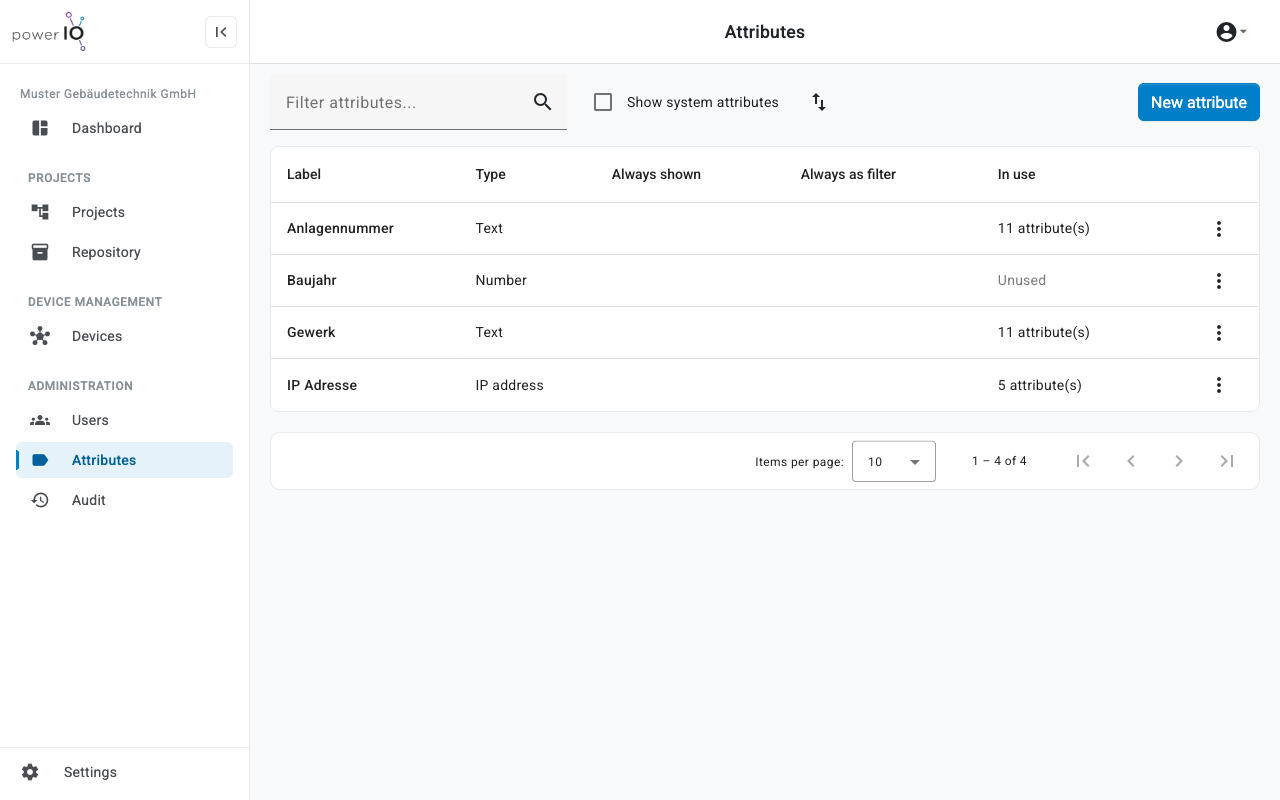
Click in the sidebar on **Attributes**. The list shows all attributes with type and usage.
Attribute catalog
{% endstep %}
{% step %}
### Open the New attribute dialog
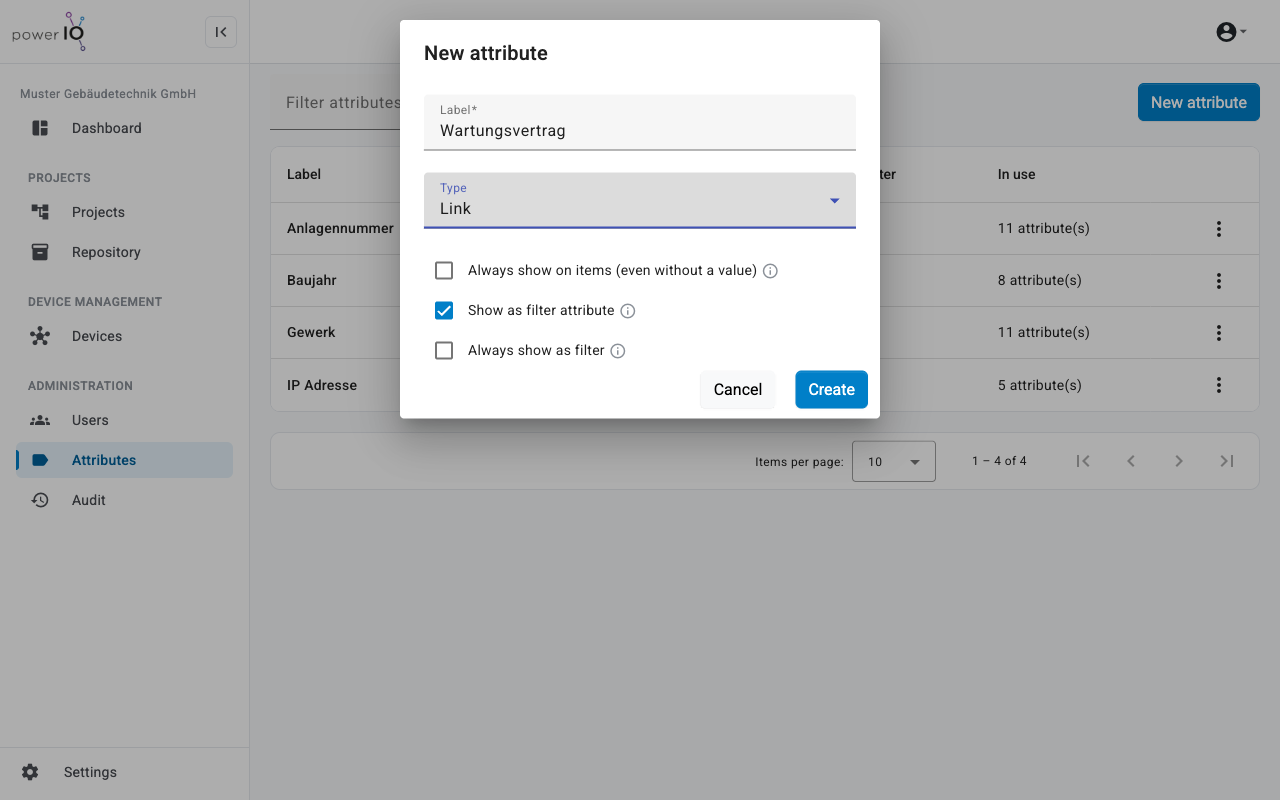
Click on **New attribute**. The dialog **New attribute** appears.
{% endstep %}
{% step %}
### Define name, type, and options
Enter under **Label** enter the name and select under **Type** the type. Optional: Adjust the options in the table below the steps.
New attribute dialog in the default setting
{% endstep %}
{% step %}
### Create attribute
Click on **Create**. The attribute appears in the catalog and is available for all elements.
{% endstep %}
{% endstepper %}
| Option | Effect |
| ----------------------------------------------- | ---------------------------------------------------------------------------------------------------------------------- |
| **Always show on items (even without a value)** | Orbit displays the attribute on every item, even without a value. |
| **Show as filter attribute** | The attribute is available as a filter in the **Projects** under **Attributes** area. The option is active by default. |
| **Always show as filter** | The attribute gets its own filter button above the project tree. The option requires **Show as filter attribute** . |
## Assigning values to an element
Values can be assigned by anyone whose role allows editing the project tree, for example **Project manager**.
{% stepper %}
{% step %}
### Select element
Click in the sidebar on **Projects** and select the element in the project tree.
{% endstep %}
{% step %}
### Open editing
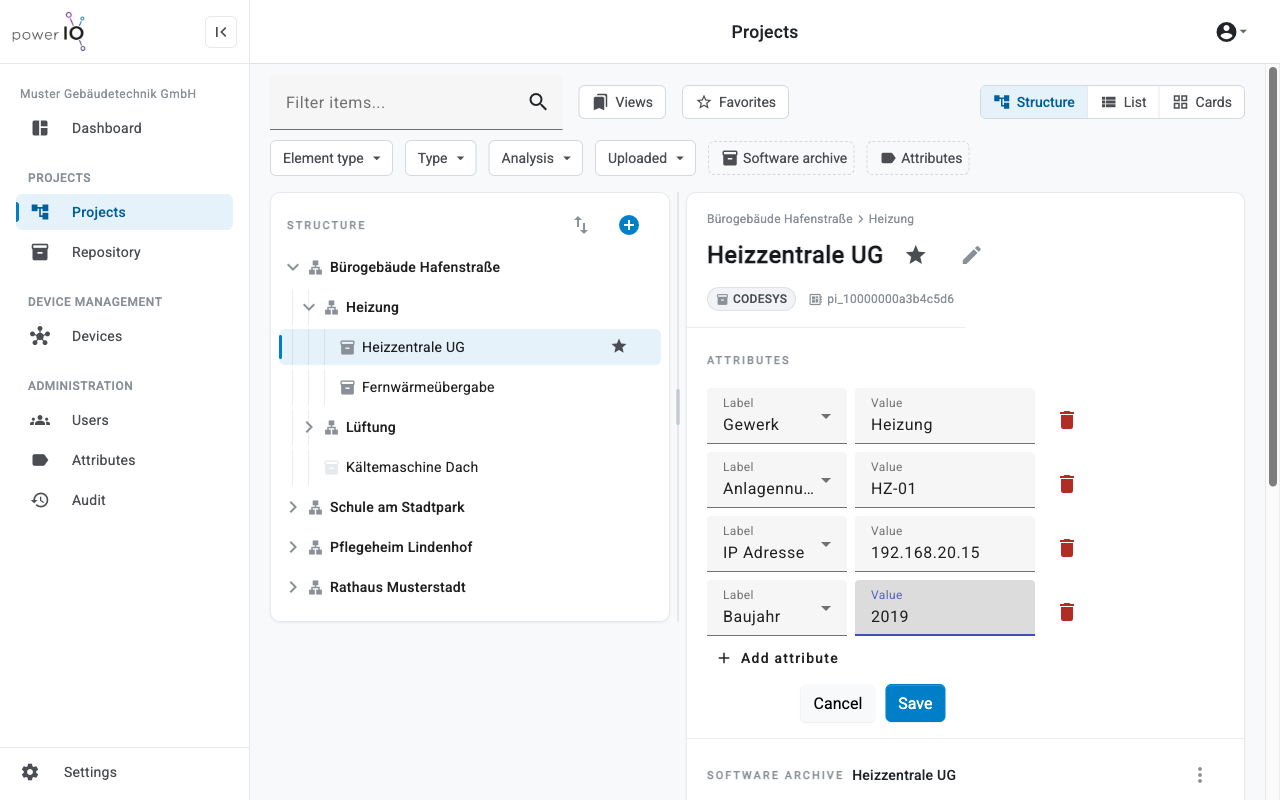
Click in the section **Attributes** on the pencil icon (**Edit**). The attributes become input fields.
{% endstep %}
{% step %}
### Add attribute
Click on **Add attribute**. Select the attribute under **Label** and enter under **Value** the value.
Edit attributes of an item
{% endstep %}
{% step %}
### Save
Click on **Save**. Orbit reports **Attributes saved**.
{% endstep %}
{% endstepper %}
A value is removed if you click the trash can icon in its row and then save. If the desired attribute is missing under **Label** enter its name in the search field and select the entry with **Create** and the name. Orbit then opens the dialog **New attribute** with this name.
## Sort and delete attributes
The order of the attributes applies to all users, in the details of an item and in the filters. You can change it in the **Attributes** section with the double arrow icon (**Reorder attributes**).
To choose a different type for an attribute already in use, use **Edit** in the attribute menu. Orbit does not convert existing values.
{% hint style="warning" %}
**WARNING**
Data loss when deleting an attribute. Orbit removes the attribute with all values from all elements.
* Before deleting, check the elements Orbit lists in the dialog.
* Enter for confirmation `delete` only if the values are no longer needed.
{% endhint %}
To delete, choose in the attribute menu **Delete**.
---
# Agent Instructions
This documentation is published with GitBook. GitBook is the documentation platform designed so that both humans and AI agents can read, navigate, and reason over technical content effectively. Learn more at gitbook.com.
## Querying This Documentation
If you need additional information that is not directly available in this page, you can query the documentation dynamically by asking a question.
Perform an HTTP GET request on the following URL with the `ask` and `goal` query parameters:
```
GET https://support.powerio.com/hub/orbit/en/projects/projekte/attribute.md?ask=&goal=
```
`ask` is the immediate question: it should be specific, self-contained, and written in natural language.
`goal` is what the user is ultimately trying to achieve, the reason they need the answer. Sharing it helps GitBook give you a better, more relevant answer. A goal is most helpful when it describes the outcome the user wants rather than restating the question. For example, with `ask=how do I create an API token`, a goal like `build a script that syncs our docs to a CMS` lets GitBook tailor the answer to that use case.
The response will contain a direct answer to the question and relevant excerpts and sources from the documentation.
Use this mechanism when the answer is not explicitly present in the current page, you need clarification or additional context, or you want to retrieve related documentation sections.