> For the complete documentation index, see [llms.txt](https://support.powerio.com/hub/llms.txt). Markdown versions of documentation pages are available by appending `.md` to page URLs; this page is available as [Markdown](https://support.powerio.com/hub/orbit/en/projects/projekte.md).
# Projects and items
Projects in powerIO Orbit represent buildings and systems as a tree of collections and items. The page explains the structure, software archives, attachments, and views.
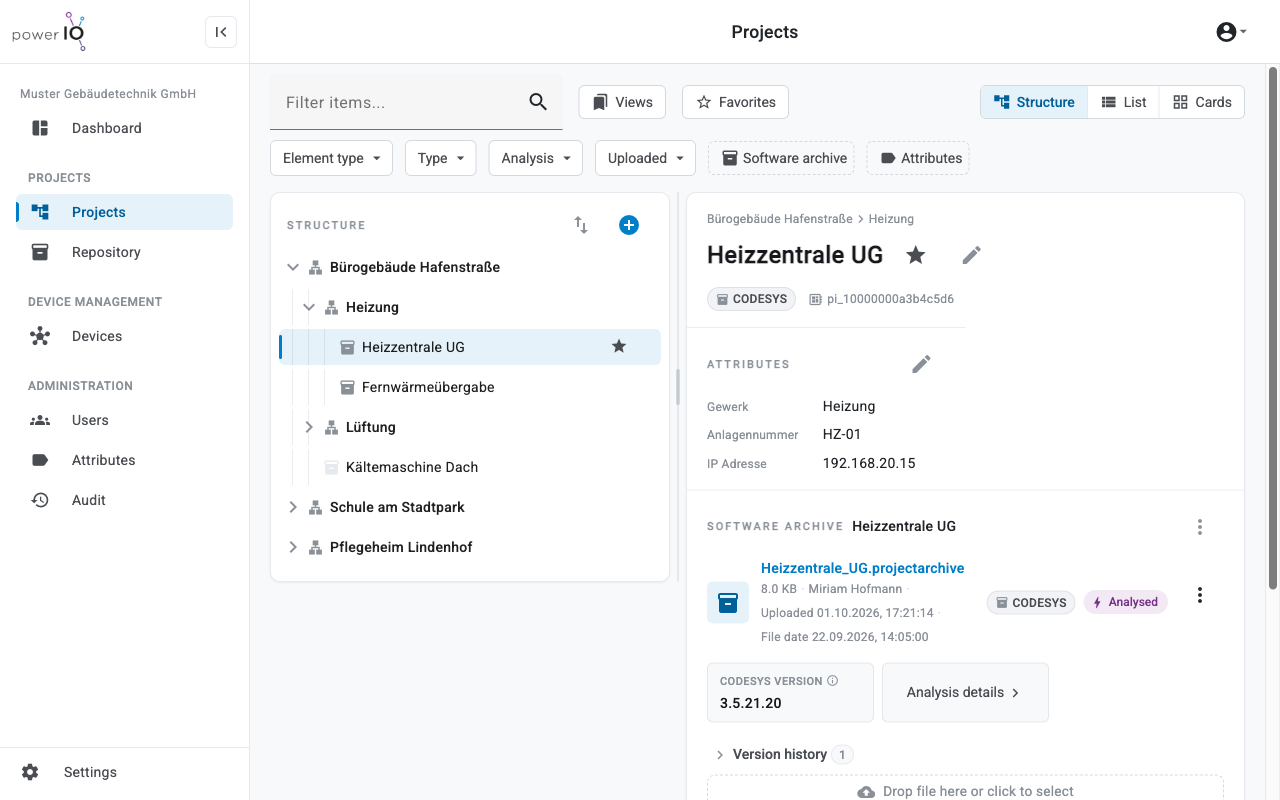
In the project tree, you can find the software version of its controller for each plant, along with all versions, plus attachments such as plant diagrams or logs. Three views, filters, and saved **Views** lead to the right element even in large projects.
Project tree and details of an item with attributes and software archive
## Collection and Item
Each element in the project tree is either a Collection or an Item. The elements at the top level are your projects and count toward the project quota of your plan.
| Type | Purpose | Software archive | Attachments |
| -------------- | ------------------------------------------------------------------------------------------------------------------ | ------------------ | ----------- |
| **Collection** | Structures items, for example by building section or trade, and shows the software archives of all items below it. | No | Yes |
| **Item** | Represents a controller or a plant, for example a ventilation system. | A software archive | Yes |
Using the context menu of an element, you can convert an item into a collection and vice versa. An item with a software archive cannot be converted into a collection.
## Software archives and attachments
A software archive is the project of a controller, for example a CODESYS project. powerIO Orbit recognizes the type upon upload **CODESYS** or **SBC**. Each upload of a new file creates a new version, older versions are available under **Version history**.
By default, Orbit automatically analyzes archives of type CODESYS and SBC after upload. The result shows, for example, the CODESYS version; further values are under **Analysis details**.
Attachments are arbitrary files for an element, for example plant diagrams or commissioning logs. Attachments are also versioned.
## Views Structure, List and Cards
The area **Projects** is displayed in three views.
| View | Display |
| ------------- | ----------------------------------------------------------------------------- |
| **Structure** | Project tree on the left and the details of the selected element on the right |
| **List** | Table of elements with selectable columns, by default only the top level |
| **Cards** | One card per element, sortable by structure, name, or last upload |
With the search field **Filter items...** and the filters above the tree, you narrow down the elements, for example by **Type** of the software archive. Under **Views** you save search and filter as a view and share it with your organization if needed.
## Attributes
Attributes describe elements with custom fields, for example plant number or IP address. Your organization maintains the shared catalog of attributes in the area **Attributes**. Attributes marked as filterable appear as filters in the area **Projects**.
---
# Agent Instructions
This documentation is published with GitBook. GitBook is the documentation platform designed so that both humans and AI agents can read, navigate, and reason over technical content effectively. Learn more at gitbook.com.
## Querying This Documentation
If you need additional information that is not directly available in this page, you can query the documentation dynamically by asking a question.
Perform an HTTP GET request on the following URL with the `ask` and `goal` query parameters:
```
GET https://support.powerio.com/hub/orbit/en/projects/projekte.md?ask=&goal=
```
`ask` is the immediate question: it should be specific, self-contained, and written in natural language.
`goal` is what the user is ultimately trying to achieve, the reason they need the answer. Sharing it helps GitBook give you a better, more relevant answer. A goal is most helpful when it describes the outcome the user wants rather than restating the question. For example, with `ask=how do I create an API token`, a goal like `build a script that syncs our docs to a CMS` lets GitBook tailor the answer to that use case.
The response will contain a direct answer to the question and relevant excerpts and sources from the documentation.
Use this mechanism when the answer is not explicitly present in the current page, you need clarification or additional context, or you want to retrieve related documentation sections.