> For the complete documentation index, see [llms.txt](https://support.powerio.com/hub/llms.txt). Markdown versions of documentation pages are available by appending `.md` to page URLs; this page is available as [Markdown](https://support.powerio.com/hub/orbit/en/getting-started/oberflaeche.md).
# Interface overview
How to find your way around powerIO Orbit: what the individual areas contain, what the dashboard shows, and where to change language and appearance.
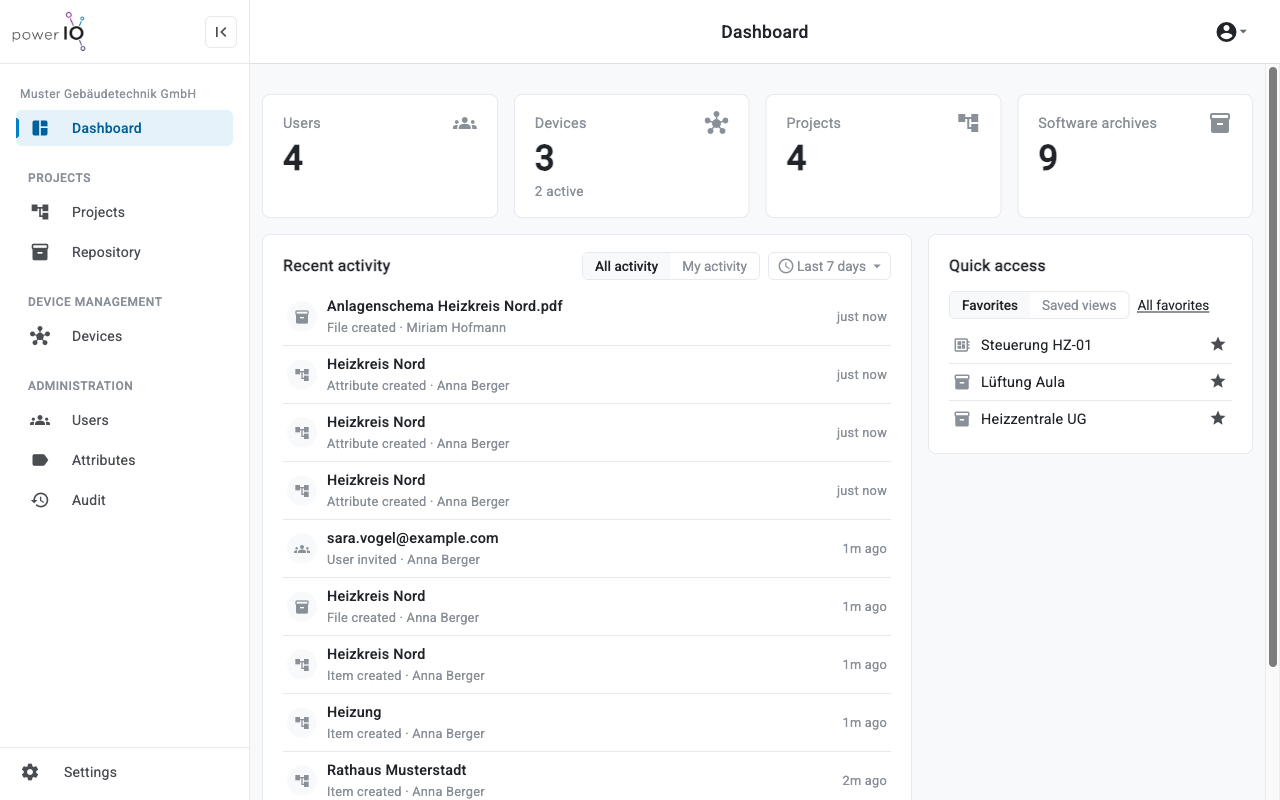
On the left is the sidebar with all sections, at the top the header with the user menu, and next to it the workspace. Which sections you see depends on your roles and your organization’s plan.
Dashboard with sidebar, metrics, and quick access
{% hint style="info" %}
This documentation shows powerIO Orbit with an English interface. Names of buttons, menus, and fields are shown in bold and exactly as in Orbit, for example **Projects** or **Invite user**.
{% endhint %}
## Sections in the sidebar
The name of your organization is at the top of the sidebar. If you belong to multiple organizations, click the name and choose another organization.
| Section | Content |
| -------------- | ----------------------------------------------------------------------------------------------------- |
| **Dashboard** | Metrics, recent activity, and favorites |
| **Projects** | Projects as a tree of collections and items with software archives and attachments |
| **Repository** | List of all software archives in the organization |
| **Devices** | powerIO devices in the organization with status and versions |
| **Users** | Users, invitations, and roles |
| **Attributes** | Shared catalog of attributes for items in projects |
| **Audit** | Log of all changes and restore deleted content |
| **Settings** | Tabs **Account**, **Organization** and **Settings** with profile, language, and organization settings |
With **Collapse sidebar** Collapse the sidebar to get more space for the workspace.
## Dashboard
The **Dashboard** appears after logging in. At the top it shows the number of **Users**, **Devices**, **Projects** and **Software archives**. Under **Devices** it also shows how many devices are active.
**Recent activity** lists the recent changes in your organization. With **All activity** and **My activity** you choose whether you want to see all changes or only your own. Using the time selection, for example **Last 7 days**, you set the time period.
**Quick access** shows your **Favorites** and **Saved views**. An item or a device becomes a favorite when you click the star icon next to it.
## User menu
You open the user menu with the person icon at the top right. The menu shows your name, your email address, and the active organization.
| Entry | Function |
| --------------------------------- | ------------------------------------------------------- |
| **Preferences** | Opens the settings with your profile. |
| **Logout** | Logs you out of powerIO Orbit. |
| Sun icon, moon icon, monitor icon | Switches the display to light, dark, or system setting. |
---
# Agent Instructions
This documentation is published with GitBook. GitBook is the documentation platform designed so that both humans and AI agents can read, navigate, and reason over technical content effectively. Learn more at gitbook.com.
## Querying This Documentation
If you need additional information that is not directly available in this page, you can query the documentation dynamically by asking a question.
Perform an HTTP GET request on the following URL with the `ask` and `goal` query parameters:
```
GET https://support.powerio.com/hub/orbit/en/getting-started/oberflaeche.md?ask=&goal=
```
`ask` is the immediate question: it should be specific, self-contained, and written in natural language.
`goal` is what the user is ultimately trying to achieve, the reason they need the answer. Sharing it helps GitBook give you a better, more relevant answer. A goal is most helpful when it describes the outcome the user wants rather than restating the question. For example, with `ask=how do I create an API token`, a goal like `build a script that syncs our docs to a CMS` lets GitBook tailor the answer to that use case.
The response will contain a direct answer to the question and relevant excerpts and sources from the documentation.
Use this mechanism when the answer is not explicitly present in the current page, you need clarification or additional context, or you want to retrieve related documentation sections.