> For the complete documentation index, see [llms.txt](https://support.powerio.com/hub/llms.txt). Markdown versions of documentation pages are available by appending `.md` to page URLs; this page is available as [Markdown](https://support.powerio.com/hub/orbit/en/administration/einstellungen.md).
# Organization settings
How to check your organization's plan and usage in powerIO Orbit and set the time zone, date format, archive analysis, and upload rules.
You open the settings via **Settings** at the bottom of the sidebar. The tab **Account** applies only to your own account. The tabs **Organization** and **Settings** apply to the entire organization and are available to the **Customer admin** available.
## Account
In the tab **Account** you upload with **Upload picture** a profile picture. Orbit accepts PNG, JPEG and WebP files up to 2 MB. You manage your name, email address and password in your account, which Orbit opens via **Manage profile** .
## Organization
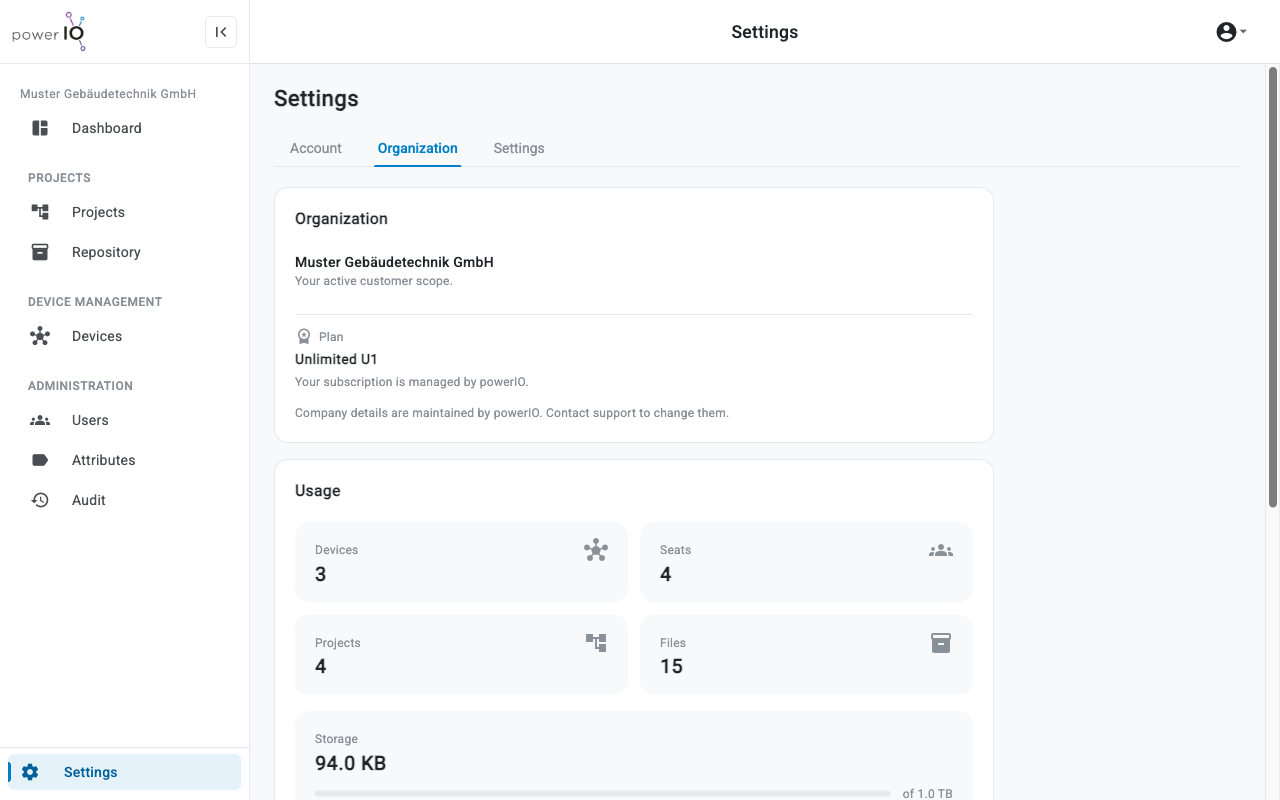
The tab **Organization** shows the name of your organization, the plan under **Plan** and under **Usage** the current usage. powerIO maintains company data and the plan; for changes, contact support.
Plan and usage in the Organization tab
**Usage** shows the number of devices, users (**Seats**), projects and files as well as the storage used. Storage includes all versions of each file, including content in the trash. Under **Manage** links lead to **Users**, **Devices**, **Attributes** and **Audit**.
## Date and time
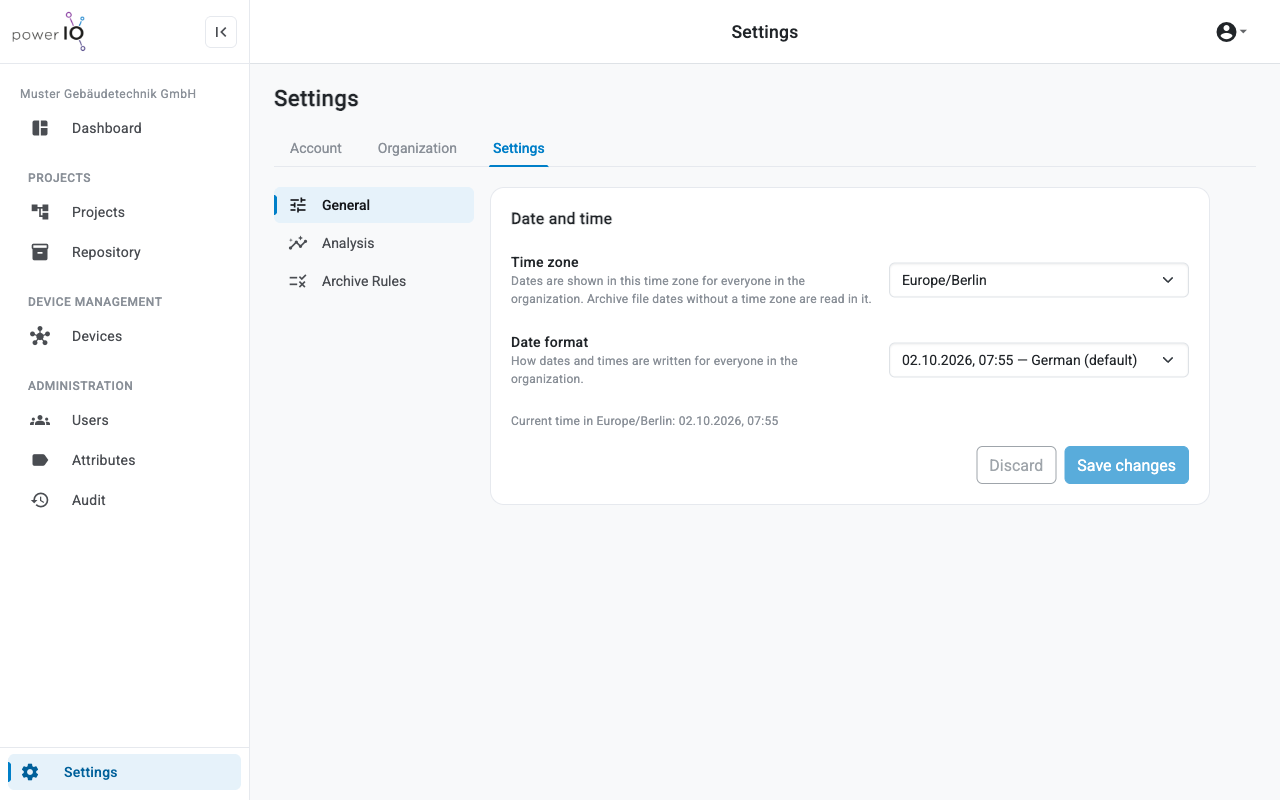
Under **Settings** > **General** you define how Orbit displays date and time for everyone in the organization. Only the **Customer admin**.
| setting | Effect |
| --------------- | -------------------------------------------------------------------------------------------------------------------------------------------------------- |
| **Time zone** | time zone for all timestamps. Orbit also reads file data from archives without their own time zone in this zone. The default setting is `Europe/Berlin`. |
| **Date format** | Format for date and time: **German (default)**, **ISO 8601**, **British** or **US**. |
Time zone and date format
After making a change, click **Save changes**.
## Archive analysis
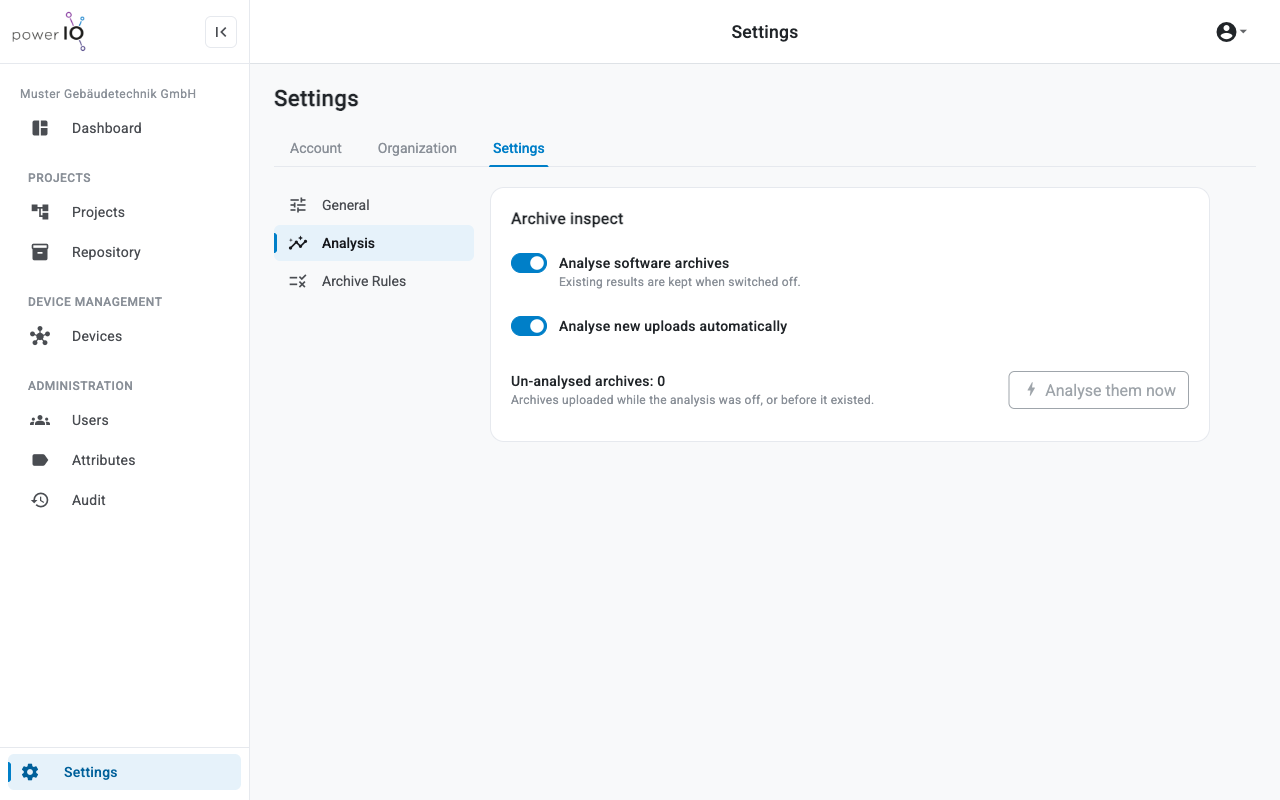
Under **Settings** > **Analysis** you control the automatic analysis of software archives. Both switches are enabled by default and take effect immediately.
| Switch | Effect |
| ------------------------------------- | ----------------------------------------------------------------------------- |
| **Analyse software archives** | Turns analysis for the organization on or off. Existing results are retained. |
| **Analyse new uploads automatically** | Analyzes each new archive immediately after upload. |
Archive analysis settings
Orbit counts archives uploaded while analysis was turned off under **Unanalyzed archives**. With **Analyze them now** you can backfill the analysis for these archives.
## Rules for uploads
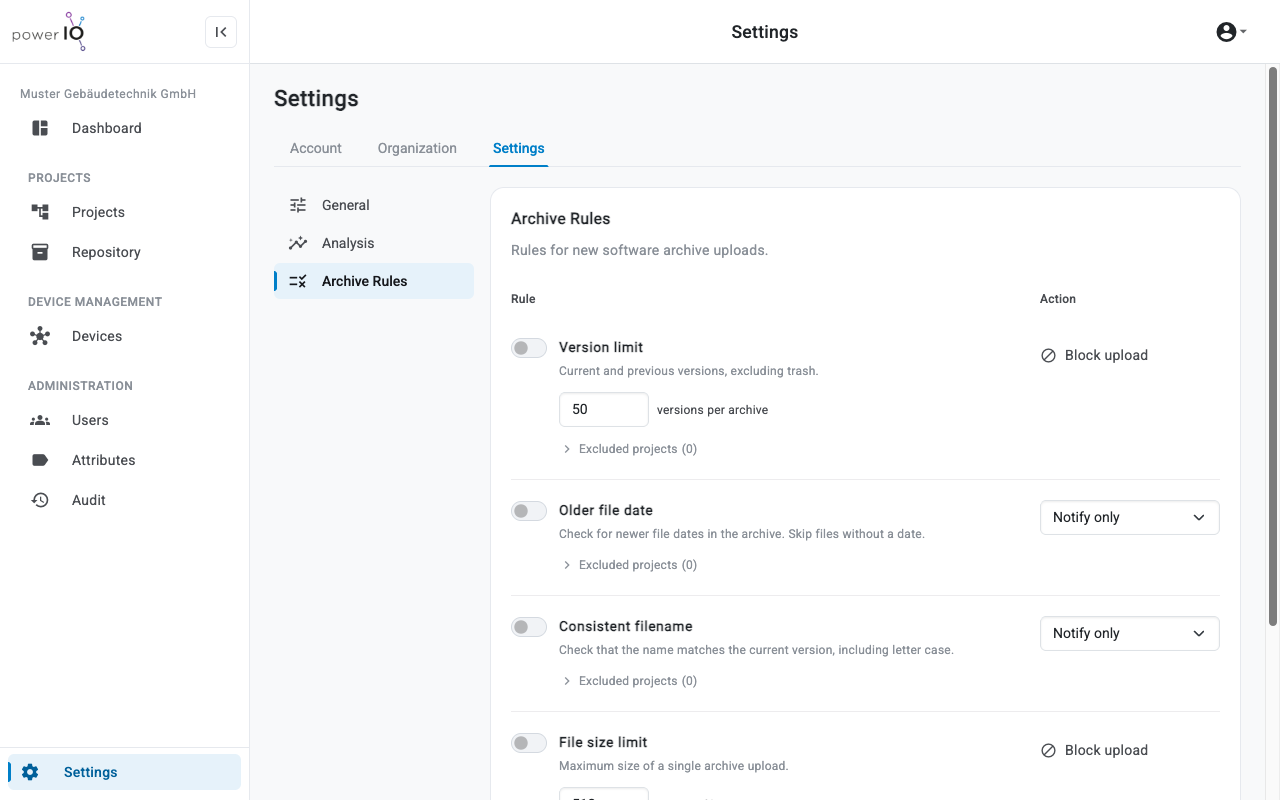
Under **Settings** > **Archive Rules** the **Customer admin** defines rules for new uploads of software archives. All rules are disabled by default. Existing versions are retained; the rules apply only to new uploads and not to attachments.
| Rule | Check | Possible action |
| ----------------------- | --------------------------------------------------------------- | ----------------------------------------------------------- |
| **Version limit** | Maximum number of versions per archive, default 50 | **Block upload** |
| **Older file date** | The new file is older than the current version. | **Notify only**, **Require confirmation**, **Block upload** |
| **Consistent filename** | The file name differs from the current version, including case. | **Notify only**, **Require confirmation** |
| **File size limit** | Maximum size of a single file in MiB, default 512 | **Block upload** |
Rules for new uploads
Under **Excluded projects** exclude individual projects or collections from a rule. Save the rules with **Save changes**.
If a rule triggers with **Require confirmation**, Orbit asks during upload. With **Upload anyway** you upload the file anyway. With **Block upload** Orbit rejects the file.
---
# Agent Instructions
This documentation is published with GitBook. GitBook is the documentation platform designed so that both humans and AI agents can read, navigate, and reason over technical content effectively. Learn more at gitbook.com.
## Querying This Documentation
If you need additional information that is not directly available in this page, you can query the documentation dynamically by asking a question.
Perform an HTTP GET request on the following URL with the `ask` and `goal` query parameters:
```
GET https://support.powerio.com/hub/orbit/en/administration/einstellungen.md?ask=&goal=
```
`ask` is the immediate question: it should be specific, self-contained, and written in natural language.
`goal` is what the user is ultimately trying to achieve, the reason they need the answer. Sharing it helps GitBook give you a better, more relevant answer. A goal is most helpful when it describes the outcome the user wants rather than restating the question. For example, with `ask=how do I create an API token`, a goal like `build a script that syncs our docs to a CMS` lets GitBook tailor the answer to that use case.
The response will contain a direct answer to the question and relevant excerpts and sources from the documentation.
Use this mechanism when the answer is not explicitly present in the current page, you need clarification or additional context, or you want to retrieve related documentation sections.