> For the complete documentation index, see [llms.txt](https://support.powerio.com/hub/llms.txt). Markdown versions of documentation pages are available by appending `.md` to page URLs; this page is available as [Markdown](https://support.powerio.com/hub/faq/faq-en/powerio-system-faq/updates-und-versionen.md).
# Updates and versions
This article explains which updates are available and how the versions can be read.
## Which updates are available?
The system is modular, which gives us the ability to provide updates quickly and easily. Updates are divided into 3 areas:
{% tabs %}
{% tab title="Firmware" %}
**Definition - *****Firmware***
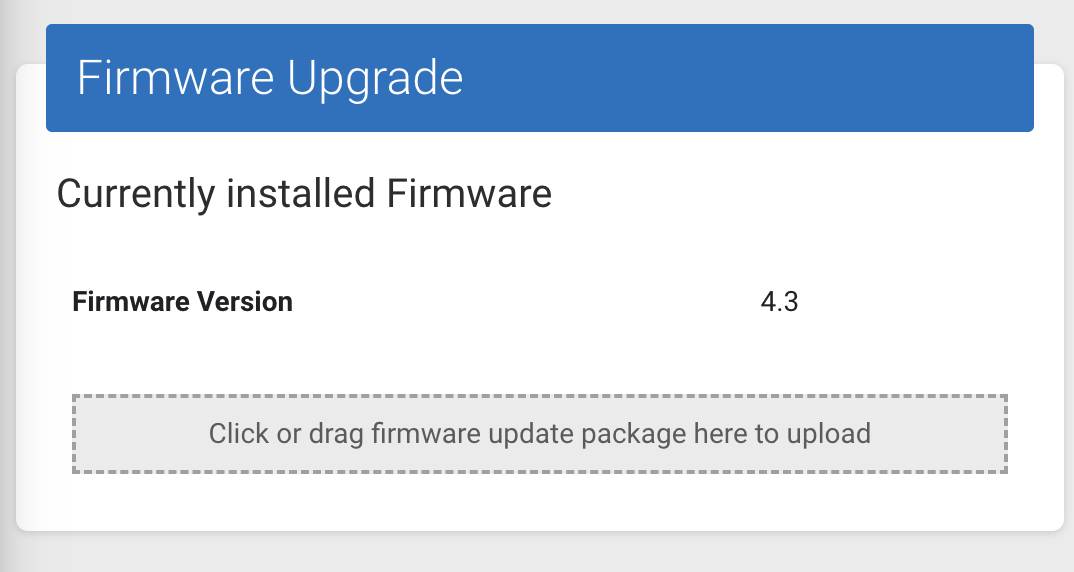
* The firmware contains the system. Upon delivery, you always receive a device with the latest firmware version.
**Firmware Download**
* The current firmware is on the support page in the [download area](/hub/downloads/en/powerio-downloads/t1.b100-firmware.md).
**Update option**
* Via the **web interface** of the device
* or the **Device Manager** (Bulk Updates)
**Recommendation/Other:**
* Always perform only an upgrade to a newer version.
* Should problems occur with a new version, then [contact us](https://www.powerio.com/de/kontakt) please.
* A downgrade is possible, but should only be carried out in consultation with powerIO Support.
{% endtab %}
{% tab title="Bootloader" %}
**Definition - *****Bootloader***
* The bootloader ensures the system starts and offers the possibility to restore the device to factory settings. Upon delivery, you always receive a device with the latest bootloader version.
**Bootloader Download**
* The current firmware is on the support page in the [download area](/hub/downloads/en/powerio-downloads/t1.b100-firmware.md).
**Update option**
* Via the **web interface** of the device
* or the **Device Manager** (Bulk Updates)
**Recommendation/Other:**
* Always perform only an upgrade to a newer version.
* A downgrade is not possible
{% endtab %}
{% tab title="Applications" %}
**Definition - *****Applications***
* An Application can be installed flexibly on a device as needed. An overview of the Applications can be found [here](/hub/powerio-r-system/en/applications/available-apps.md).
**Application Downloads**
* The current firmware is on the support page in the [download area](/hub/downloads/en/user-applications/codesys.md).
**Update option**
* Via the **web interface** of the device
**Recommendation/Other:**
* Only one Application can be installed per Application
* An upgrade of Applications is always possible and recommended.
* A downgrade is possible. To do this, the newer version must be uninstalled and the desired older Application can be installed.
* In the download area, the notes regarding minimum firmware versions must be observed.
{% endtab %}
{% endtabs %}
{% hint style="warning" %}
Please obtain the update files only from the official source in the support section. The file extension for update files is \*.PIOP
{% endhint %}
## Reading versions via the web interface
{% tabs %}
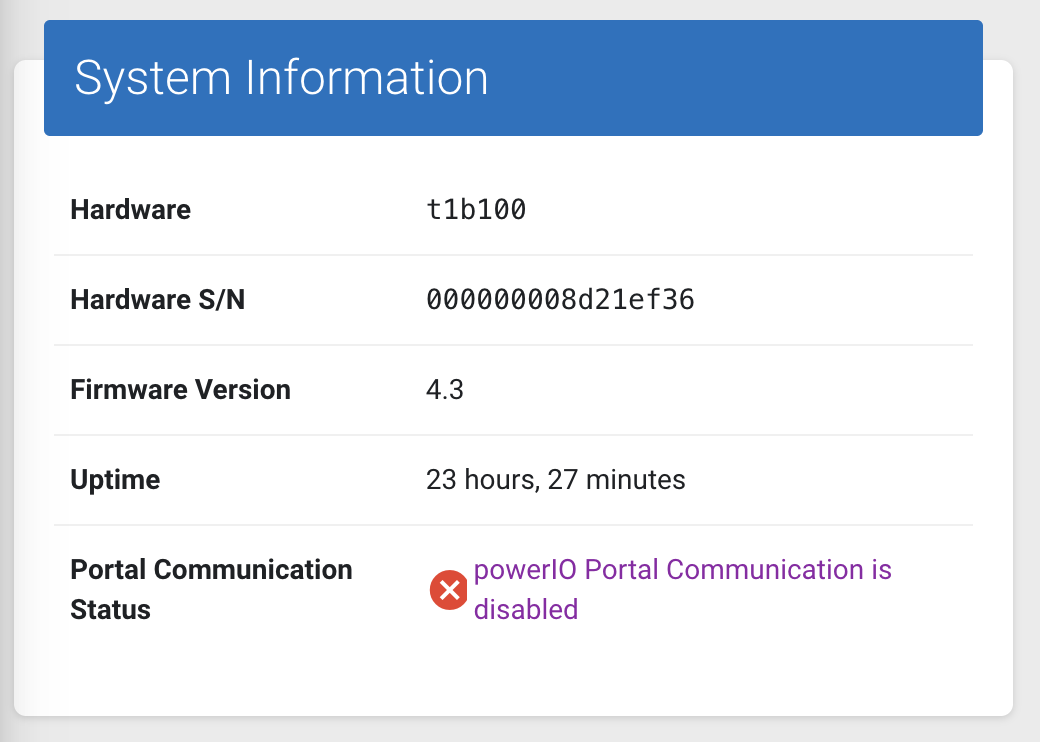
{% tab title="Firmware" %}
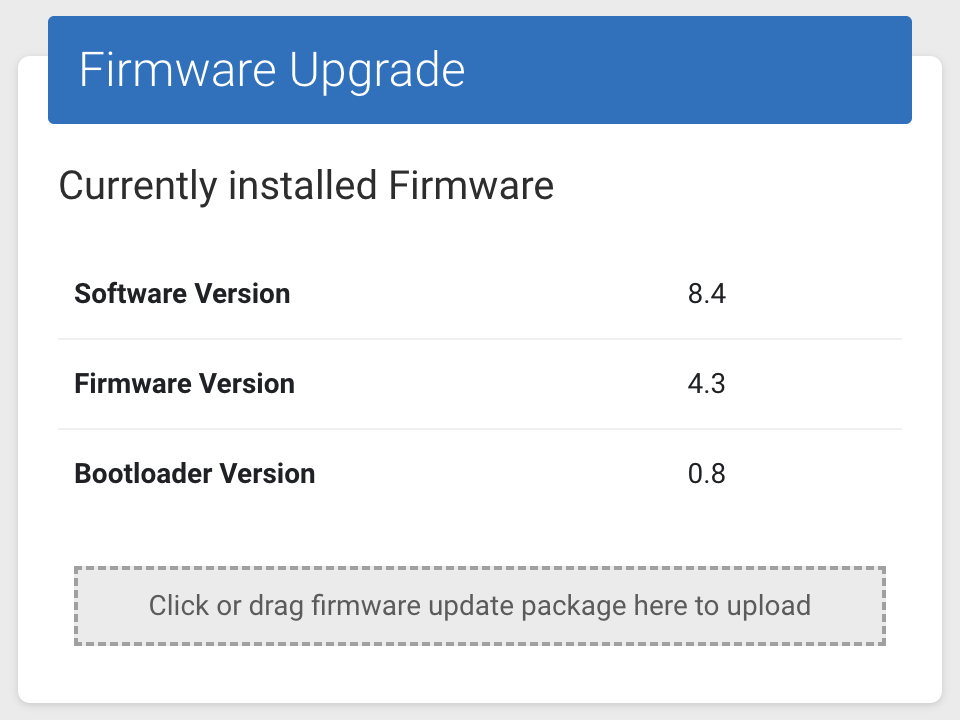
**Web interface - All Devices**
Navigation *"Dashboard" ->* Tab *"System Information"*
{% endtab %}
{% tab title="Bootloader" %}
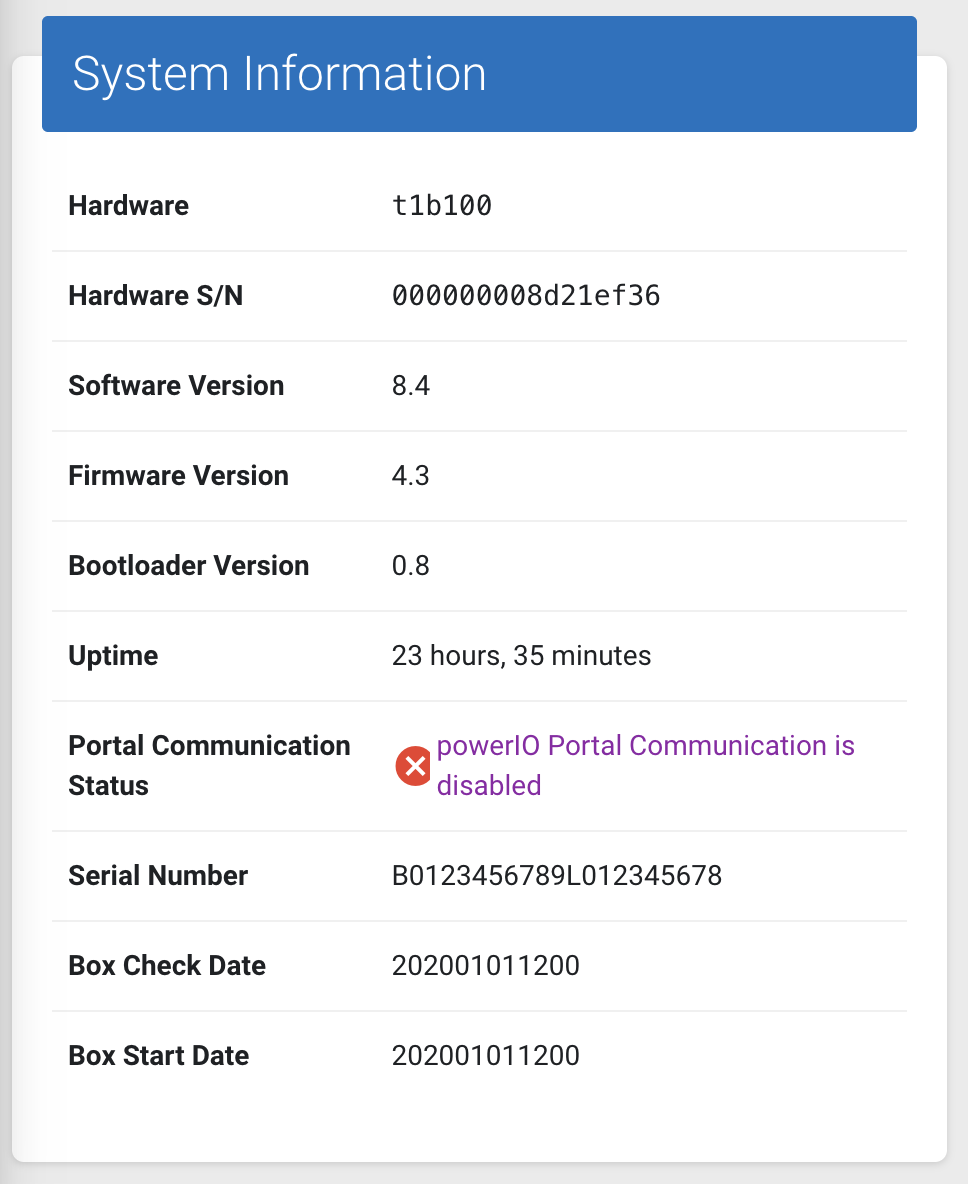
**Web interface - All Devices**
{% hint style="info" %}
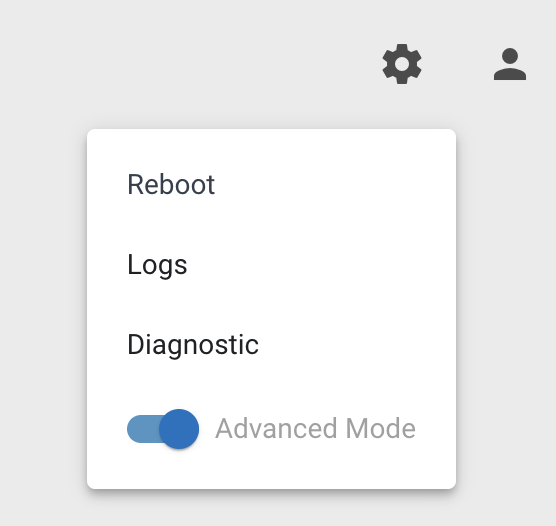
Before the version of the bootloader is displayed, the "Advanced Mode" must be activated.
{% endhint %}
Click the "gear" icon and *"Advanced Mode"* activate*.*
Navigation *"Dashboard" ->* Tab *"System Information"*
{% endtab %}
{% tab title="Applications" %}
**Web interface - All Devices**
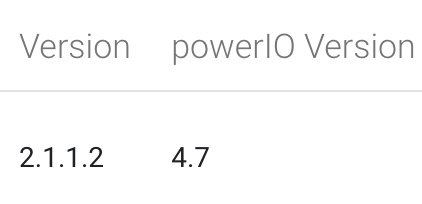
An Application always consists of two versions.
* *powerIO Version*\
\- version of the "application package" (packages) \*.PIOP file
* and *Version*\
\&#xNAN;*-* The version of the Application itself
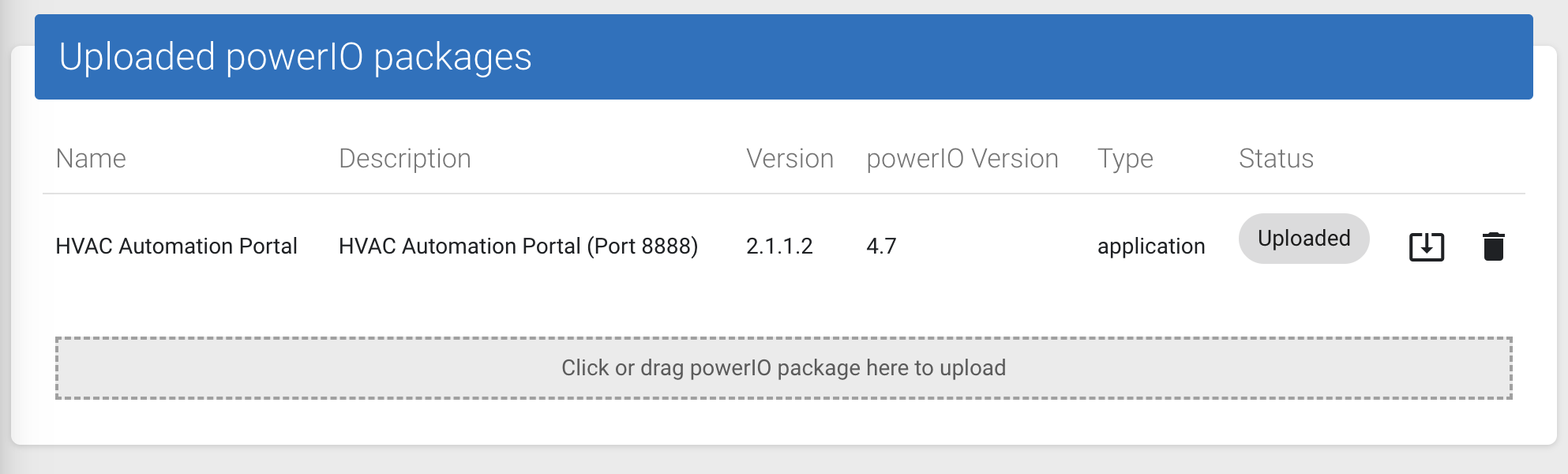
**Section - *****"Uploaded powerIO packages"***
* Here are the uploaded Application packages with the version(s)\\
{% hint style="info" %}
From the same Application, several Application packages can be uploaded if they have different "*powerIO versions*" have.
{% endhint %}
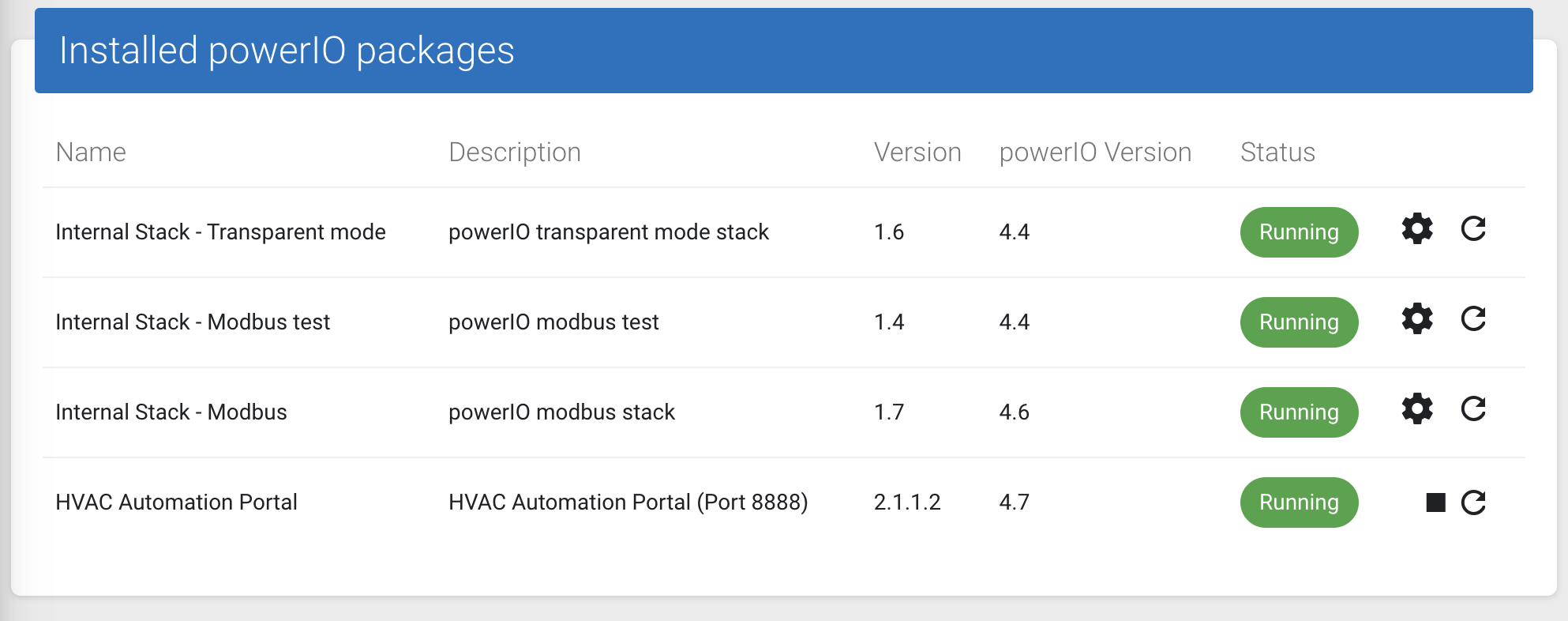
**Section - *****"Installed powerIO packages"***
* Here are the installed Applications with the respective version
{% endtab %}
{% endtabs %}
## Reading versions with the powerIO Device Manager
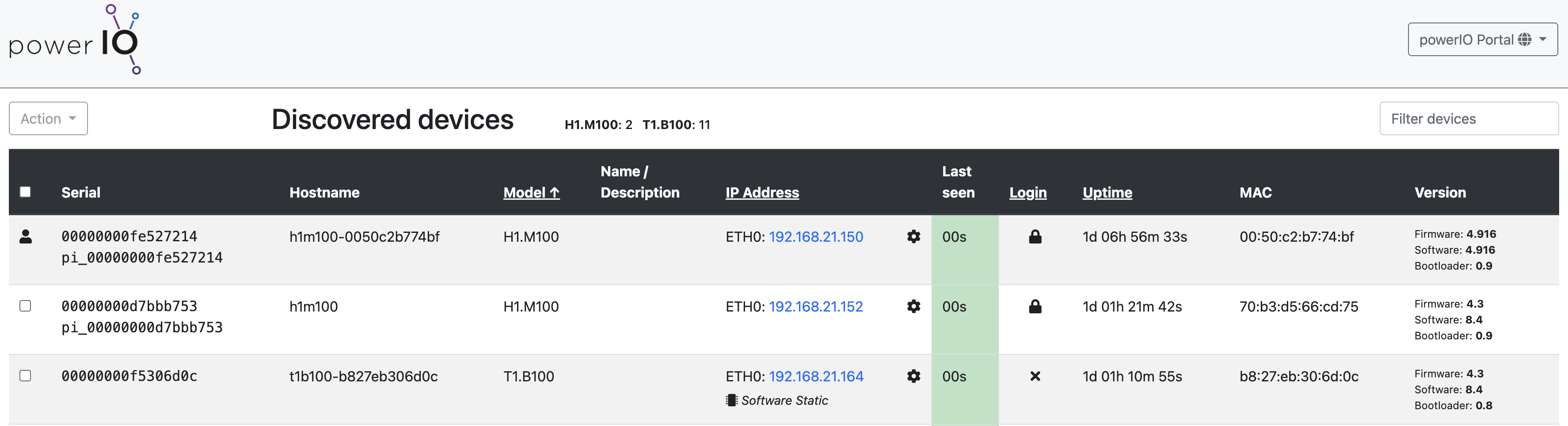
With the Device Manager, you can read the firmware and bootloader version in a network with one or more powerIO Devices. This means you do not need to access the web interface of the end devices.
{% stepper %}
{% step %}
#### Installing and using the powerIO Device Manager
* Install the powerIO Device Manager
* Desktop application OR directly as "User Application" on a powerIO device\
\
Information about the [powerIO Device Manager can be found here](/hub/powerio-r-system/en/applications/available-apps/device-manager.md)
{% endstep %}
{% step %}
#### Start the application and read versions
* After starting the application, the network is searched for devices and the respective versions are displayed in the column
{% endstep %}
{% endstepper %}
---
# Agent Instructions
This documentation is published with GitBook. GitBook is the documentation platform designed so that both humans and AI agents can read, navigate, and reason over technical content effectively. Learn more at gitbook.com.
## Querying This Documentation
If you need additional information that is not directly available in this page, you can query the documentation by asking a question.
Perform an HTTP GET request on the following URL with the `ask` and `goal` query parameters:
```
GET https://support.powerio.com/hub/faq/faq-en/powerio-system-faq/updates-und-versionen.md?ask=&goal=
```
`ask` is the immediate question: it should be specific, self-contained, and written in natural language.
`goal` is what the user is ultimately trying to achieve, the reason they need the answer. Sharing it helps GitBook give you a better, more relevant answer. A goal is most helpful when it describes the outcome the user wants rather than restating the question. For example, with `ask=how do I create an API token`, a goal like `automate deployments from our CI pipeline` lets GitBook tailor the answer to that use case.
The response will contain a direct answer to the question and relevant excerpts and sources from the documentation.
Use this mechanism when the answer is not explicitly present in the current page, you need clarification or additional context, or you want to retrieve related documentation sections.